TL;DR (Quick Decision Guide)
Critical note → Required for Frame Generation (DLSS 3/4/5) to function properly |
If you’ve explored Windows graphics settings recently, you’ve likely seen hardware accelerated GPU scheduling and wondered whether it actually improves performance—or just complicates things.
The short answer: it depends.
This feature has matured significantly across Windows 10 and Windows 11, especially with modern GPUs and AI-driven rendering features like DLSS. In some setups, it smooths performance and reduces latency. In others, it introduces stutter—or does nothing at all.
This guide breaks it down clearly: what it does, how it works, when it helps, when it hurts, and how to decide whether you should turn it on or off in 2026.
What Is Hardware Accelerated GPU Scheduling?
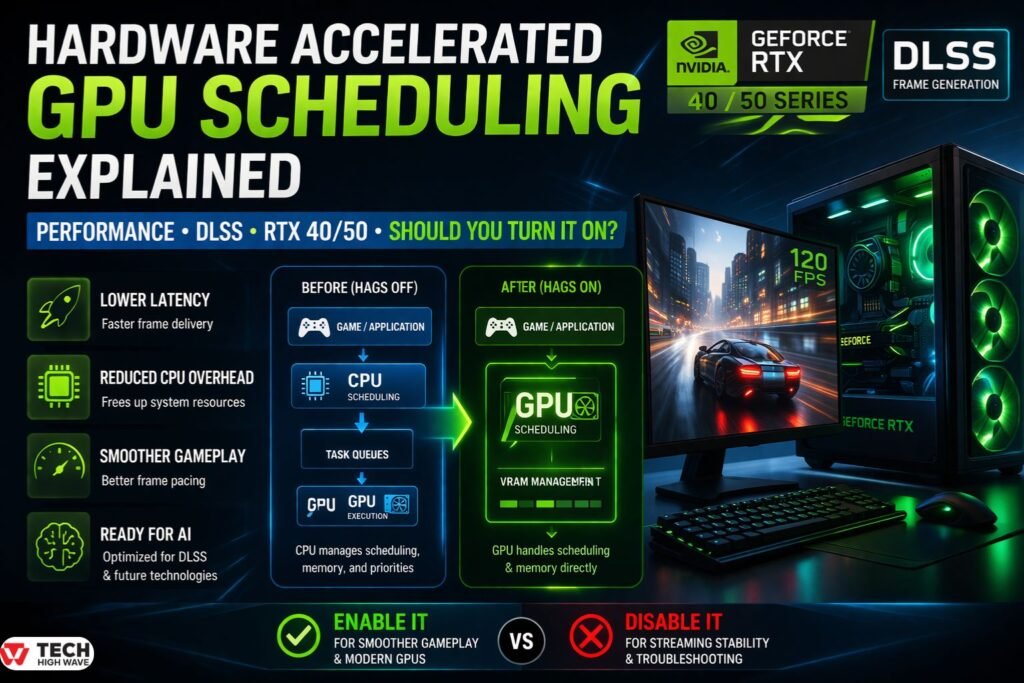
Hardware accelerated GPU scheduling (HAGS) is a Windows feature that allows the GPU to manage its own scheduling queues and VRAM allocation instead of relying on the CPU.
Traditionally, the CPU handled:
- Task queuing
- Memory management
- Scheduling priorities
With HAGS enabled:
- The GPU directly controls scheduling
- CPU overhead is reduced
- Latency may improve
Think of it as removing a middle layer. The GPU gets closer to the workload it’s executing.
On paper, that sounds like a clear win. In reality, the results depend heavily on hardware, drivers, and workload type.
How Hardware Accelerated GPU Scheduling Works
Without HAGS
- Application sends rendering tasks
- CPU schedules and prioritizes them
- GPU executes tasks
- CPU continues managing memory and queues
This introduces dependency—if the CPU becomes a bottleneck, the GPU waits.
With HAGS Enabled
- Application sends tasks
- GPU handles scheduling queues directly
- GPU manages VRAM prioritization
- CPU steps back
This reduces:
- Scheduling latency
- CPU overhead in GPU-heavy workloads
In real-world testing, the biggest difference is rarely FPS—it’s frame consistency. When HAGS works well, gameplay feels smoother even if numbers don’t change much.
Sometimes, nothing changes. That’s normal.
Hardware Accelerated GPU Scheduling: On vs Off (Real Comparison)
| Scenario | HAGS ON | HAGS OFF |
| GPU-bound gaming | Slightly better frame pacing | Stable but slightly higher latency |
| CPU-bound gaming | No meaningful change | No meaningful change |
| Modern GPUs | Often smoother | Slightly higher CPU overhead |
| Older GPUs | Possible instability | More stable |
| Streaming (OBS) | Higher chance of encoder lag | Recommended for stability |
| Multitasking | Frees CPU resources | Higher CPU load |
Reality check:
Most users won’t see dramatic FPS gains. The real benefit—if any—is smoother frame delivery.
How to Enable Hardware Accelerated GPU Scheduling (Windows 10 & 11)
- Open Settings
- Go to System → Display
- Click Graphics settings
- Select Default graphics settings
- Toggle Hardware-accelerated GPU scheduling ON
- Restart your PC
If the option is missing:
- Update your GPU drivers
- Update Windows
- Confirm your GPU supports WDDM 2.7+
System Requirements & Compatibility (2026 Update)
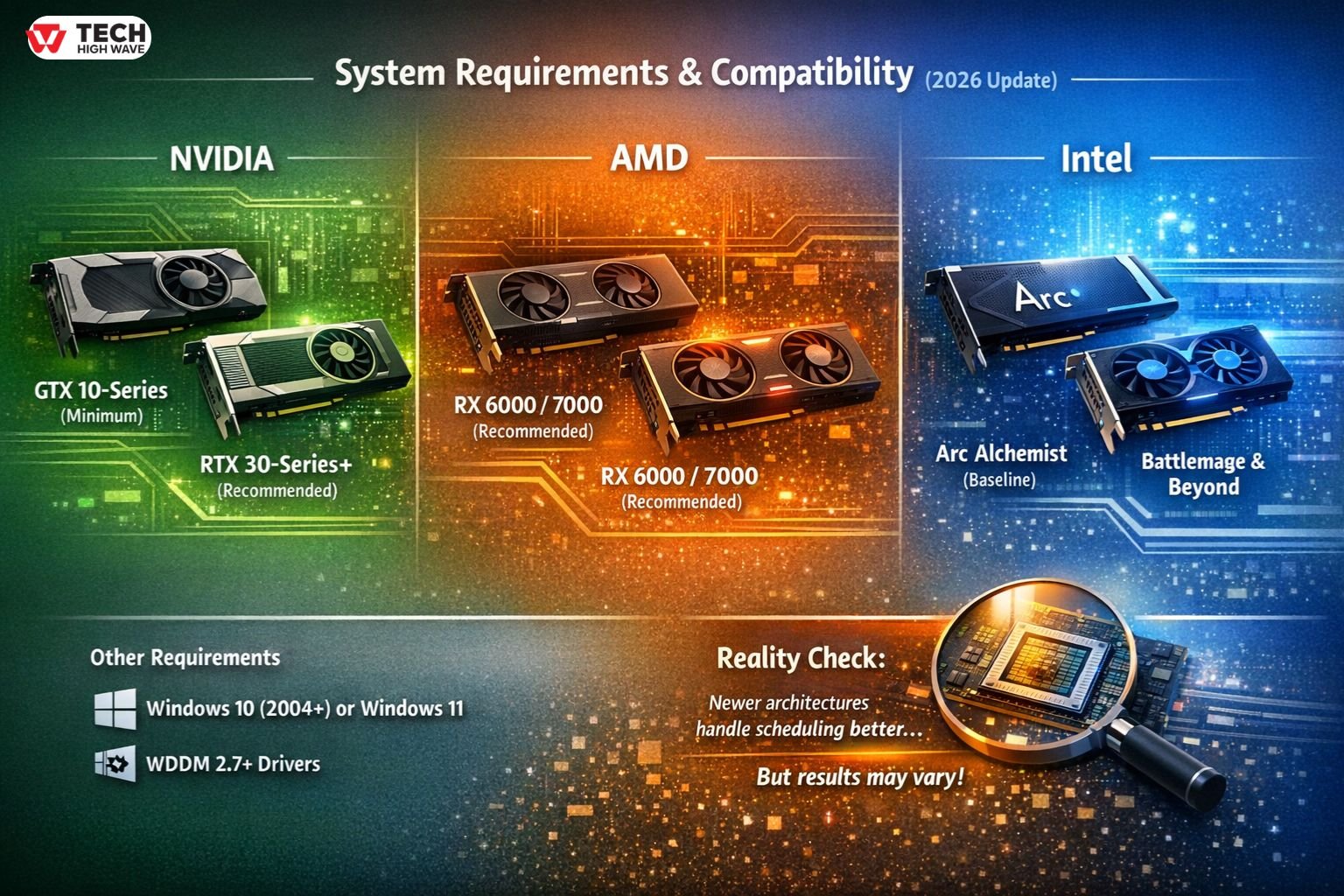
While HAGS is widely supported, real-world performance depends heavily on your GPU generation.
NVIDIA
- Minimum: GTX 10-series
- Recommended: RTX 30-series and newer
- Best results: RTX 40-series and emerging RTX 50-series (optimized for AI workloads)
AMD
- Minimum: RX 5000 (RDNA 1)
- Recommended: RX 6000 / 7000
- Most stable: RDNA 3 and newer
Intel
- Arc Alchemist (baseline support)
- Battlemage and newer architectures increasingly rely on HAGS for stable scheduling behavior
Other Requirements
- Windows 10 (2004+) or Windows 11
- WDDM 2.7+ drivers
Reality check:
Support doesn’t guarantee improvement—newer architectures simply handle GPU-side scheduling better.
What Actually Affects HAGS Performance
GPU Architecture
Newer GPUs are designed with scheduling offload in mind. Older GPUs may not benefit—or may behave inconsistently.
Driver Optimization
This is the biggest factor.
A well-optimized driver:
- Improves stability
- Reduces stutter
- Enables smoother scheduling
A poorly optimized one can do the opposite.
Workload Type
HAGS works best when:
- The GPU is heavily utilized
- The CPU is under pressure
If your system is CPU-bound, expect little to no impact.
Frame-Time Consistency
This is where HAGS matters most.
You may not gain FPS—but you may feel:
- Fewer micro-stutters
- More consistent frame delivery
Hardware Accelerated GPU Scheduling for Gaming (DLSS & Frame Generation)
In modern gaming, HAGS is becoming more relevant—especially with AI-based rendering.
Important for RTX users:
If you’re using an NVIDIA RTX 40-series or newer GPU, HAGS must remain enabled to fully utilize features like Frame Generation (DLSS 3/4/5).
Disabling it can limit how frames are queued and processed, reducing the effectiveness of AI-generated frames. In practice, this often means less smooth gameplay—even if FPS appears similar.
Where HAGS helps most:
- GPU-bound games
- High refresh rate gaming (120Hz+)
- DLSS-enabled titles
Where it doesn’t:
- CPU-limited games
- Poorly optimized titles
Hardware Accelerated GPU Scheduling for Streaming (OBS & Content Creation)
Streaming introduces a different challenge: resource contention.
In single-PC setups:
- Gaming uses GPU rendering
- Streaming uses GPU encoding
HAGS can sometimes interfere with how these workloads are prioritized.
What happens in practice:
- Increased encoder lag
- Dropped frames in OBS
- Inconsistent stream quality
For streamers:
- HAGS ON → Better for gameplay smoothness
- HAGS OFF → Better for stream stability
If you’re streaming and gaming on one PC, disabling HAGS is often the safer choice—especially on mid-range GPUs or limited VRAM setups.
Key Specialties of Hardware Accelerated GPU Scheduling
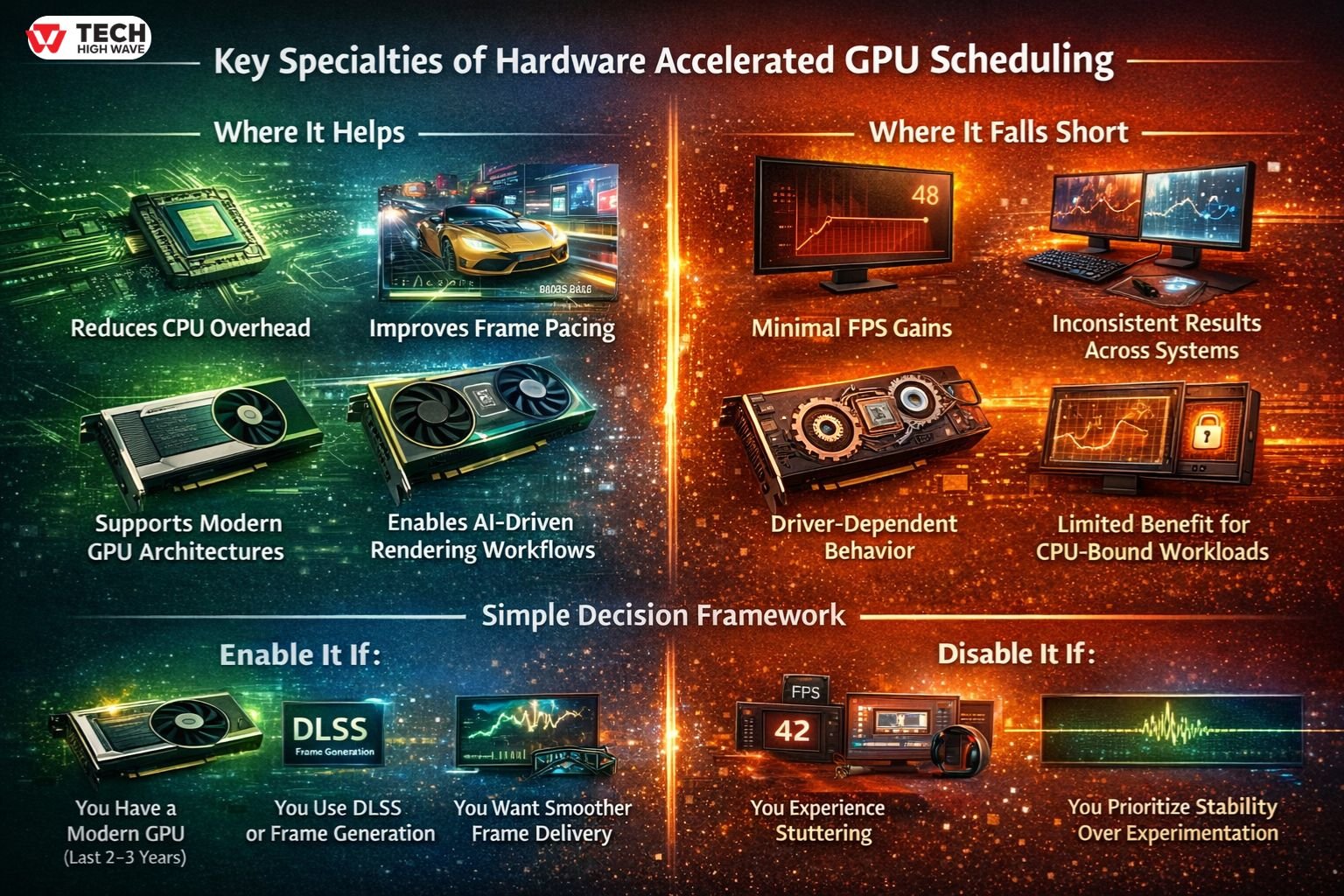
Where It Helps
- Reduces CPU overhead
- Improves frame pacing in some cases
- Supports modern GPU architectures
- Enables AI-driven rendering workflows
Where It Falls Short
- Minimal FPS gains
- Inconsistent results across systems
- Driver-dependent behavior
- Limited benefit for CPU-bound workloads
Simple Decision Framework
Enable it if:
- You have a modern GPU (last 2–3 years)
- You use DLSS or Frame Generation
- You want smoother frame delivery
Disable it if:
- You experience stuttering
- You stream on a single-PC setup
- You prioritize stability over experimentation
Common Issues & Fixes
Stuttering After Enabling HAGS
- Update GPU drivers
- Try a different driver version
- Disable HAGS and compare
Option Not Showing
- Update Windows
- Update GPU drivers
- Check compatibility (WDDM 2.7+)
No Performance Improvement
- Your system may be CPU-bound
- Your GPU may not benefit
- This is normal behavior
Common Mistakes to Avoid
Expecting Big FPS Gains
HAGS is not a performance booster—it’s a refinement tool.
Ignoring Frame-Time Metrics
FPS alone doesn’t tell the full story. Smoothness matters more.
Enabling Without Testing
Always compare before and after. Results vary significantly.
Using Outdated Drivers
Most issues come from drivers—not the feature itself.
Applying It to the Wrong Workload
If your CPU is the bottleneck, HAGS won’t help.
Future Trends in Hardware Accelerated GPU Scheduling (2026 Outlook)
AI-Driven Scheduling
GPUs are evolving toward smarter workload management:
- Dynamic prioritization
- Adaptive scheduling
- AI-assisted latency optimization
HAGS is an early step in this direction.
Deeper Windows Integration
Microsoft continues improving GPU scheduling:
- Better driver coordination
- Reduced compatibility issues
- More predictable performance
GPU Independence
The trend is clear:
- Less CPU reliance
- More GPU autonomy
- More efficient workload handling
Focus on Consistency Over Raw Speed
Performance is no longer just about FPS.
The industry is shifting toward:
- Stable frame pacing
- Lower latency
- Predictable performance
HAGS aligns with this shift.
FAQs
Q1: What is hardware accelerated GPU scheduling?
Hardware accelerated GPU scheduling is a Windows feature that allows the GPU to handle its own scheduling and memory tasks instead of relying on the CPU. This can reduce latency and CPU overhead in GPU-heavy workloads.
Q2: Does hardware accelerated GPU scheduling increase FPS?
It can increase FPS slightly in GPU-bound scenarios, but gains are usually small. The main benefit is improved frame consistency and smoother gameplay rather than higher raw frame rates.
Q3: Should I turn hardware accelerated GPU scheduling on or off?
Turn it on if you have modern hardware and want smoother performance. Turn it off if you experience stuttering, instability, or are streaming on a single-PC setup.
Q4: How do I enable hardware accelerated GPU scheduling?
Go to Settings → System → Display → Graphics settings → Default graphics settings, toggle hardware accelerated GPU scheduling, and restart your PC.
Q5: Why is hardware accelerated GPU scheduling causing stuttering?
Stuttering is usually caused by driver issues or poor optimization for your hardware. Updating or switching drivers often resolves the problem.
Q6: Is hardware accelerated GPU scheduling good for gaming?
It can improve frame pacing and reduce input lag in GPU-bound games, especially with modern GPUs and DLSS-enabled titles. However, results vary depending on your setup.
Final Thoughts
Hardware accelerated GPU scheduling isn’t a game-changer—but it’s not irrelevant either.
It’s a system-level optimization that improves how frames are delivered, not how many you get.
On modern GPUs, it’s increasingly important—especially for AI-driven features like Frame Generation.
The best approach is simple: test it on your system and keep what actually feels smoother.
Visit For More: TechHighWave