TL;DR: Quick Rescan Fix Guide
|
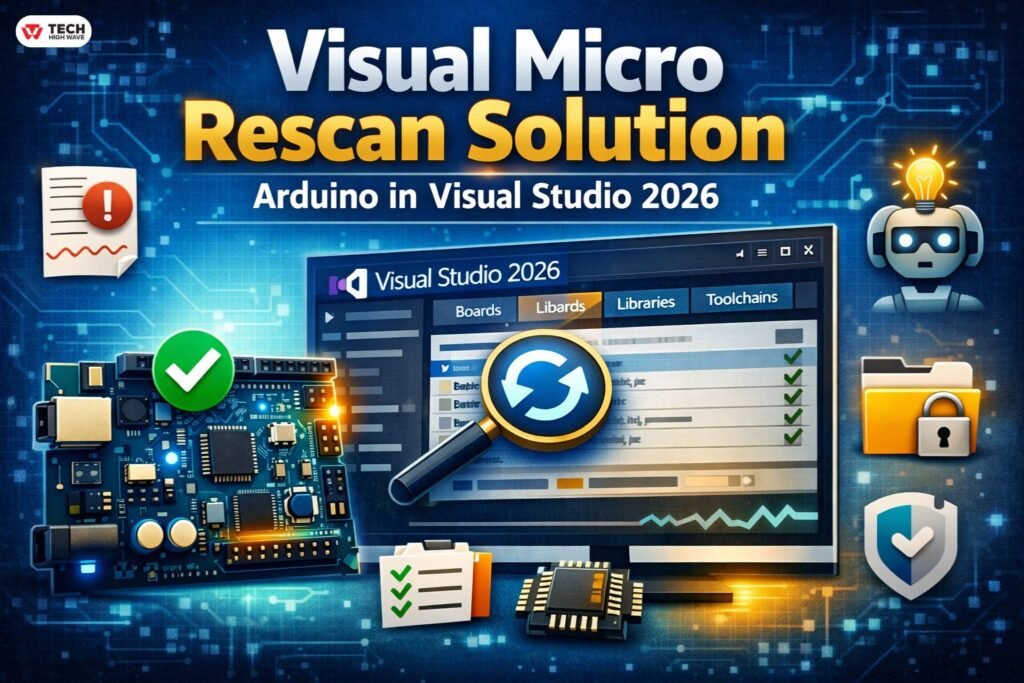
Embedded development in Visual Studio using Arduino is highly productive but prone to environment misalignment. Missing boards, unrecognized libraries, and IntelliSense errors that compile successfully are often caused by outdated paths or metadata. The visual micro rescan solution restores synchronization between Visual Studio, Visual Micro, and Arduino, ensuring reliable builds and accurate code modeling.
This guide covers what the rescan solution is, how it works, troubleshooting workflows, compatibility tips, 2026 best practices, installation instructions, and advanced strategies for minimizing recurring issues.
What Is Visual Micro Rescan Solution?
The visual micro rescan solution is a synchronization feature within Visual Micro that reindexes:
- Arduino boards and cores
- Libraries and dependencies
- Compiler and upload tool paths
- IntelliSense metadata and project references
It ensures Visual Studio mirrors the Arduino IDE or CLI setup, preventing build errors and false editor warnings. Without rescan, updates or changes to boards, cores, or libraries may go unrecognized, causing confusion for developers.
How Visual Micro Rescan Solution Works
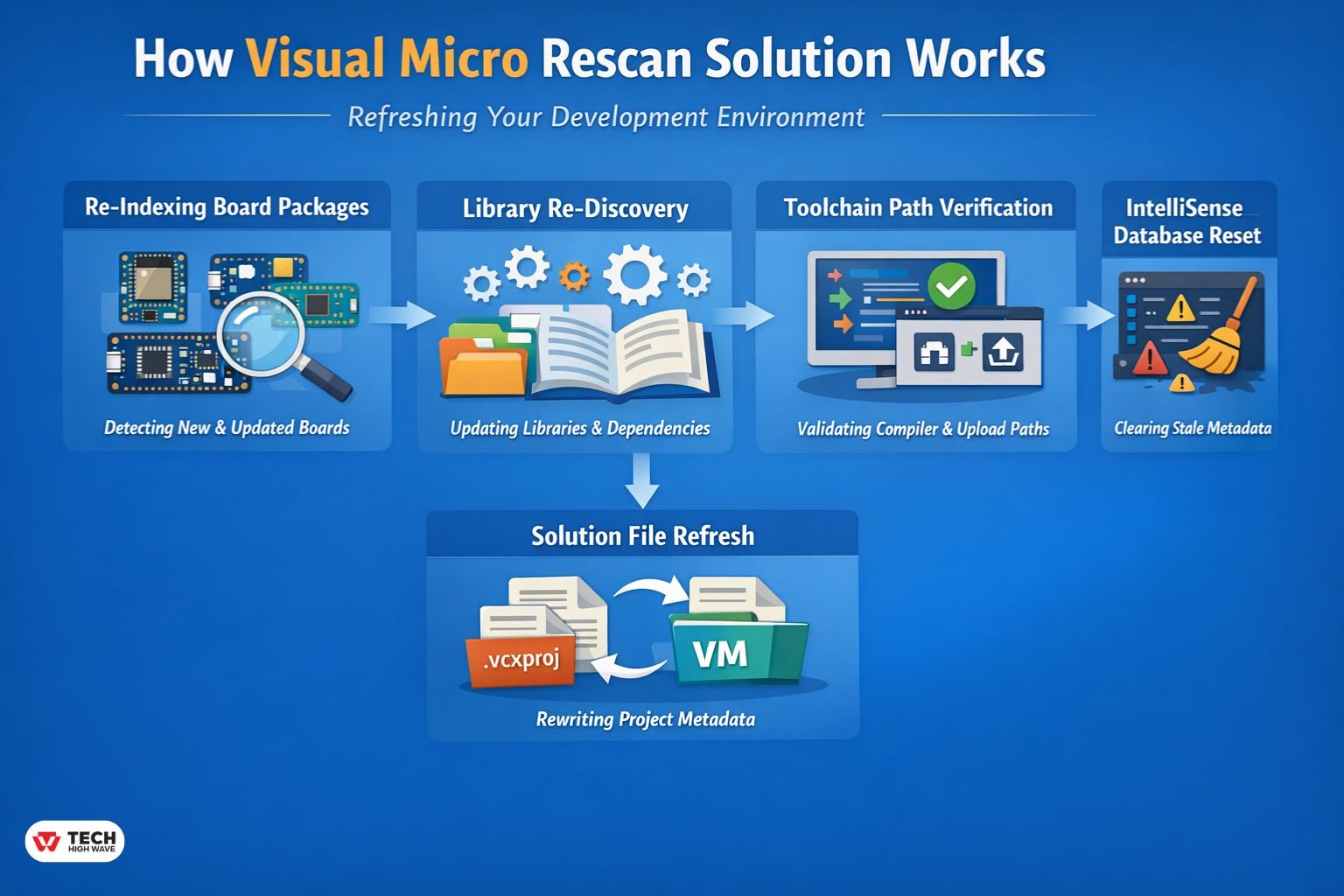
The rescan solution systematically rebuilds project references and metadata. Each step can be thought of as a small “environment refresh.”
-
Re-Indexing Board Packages
Visual Micro scans Arduino hardware folders, Board Manager installations, and platform files (platform.txt) to detect new or updated boards. This guarantees correct recognition of all installed cores, including ESP32, STM32, and AVR boards.
-
Library Re-Discovery
It searches user, global, and project-specific Arduino libraries, updating include paths and dependency references to ensure compilation and IntelliSense remain accurate.
-
Toolchain Path Verification
Compiler, upload, and debugging tool paths are validated and refreshed, particularly after updates or folder relocations.
-
IntelliSense Database Reset
False editor warnings caused by stale metadata are corrected, ensuring IntelliSense reflects the actual compiler configuration.
-
Solution File Refresh
Project metadata in .vcxproj or Visual Micro project files is rewritten as needed to restore consistent build behavior.
Compatibility & Versioning Table
| Component | Recommended Version | Notes |
| Visual Studio | 2026 Desktop | Include C++ & .NET workloads |
| Visual Micro | Latest stable | Ensure proper Arduino IDE/CLI path |
| Arduino IDE | 1.8.x or 2.x | Match CLI for board cores |
| Arduino CLI | 0.26+ | Needed for CLI-driven projects |
| Board Cores | Latest via Board Manager | e.g., ESP32 2.0+, STM32 1.9+ |
Maintaining compatibility across these versions reduces recurring rescan needs.
Key Features to Look for in Visual Micro Rescan Solution
Chart & Visualization Tools
Rescan ensures accurate board references for serial plotters, macro visualization, and debugging overlays.
Record & Document Storage
Metadata and internal records are updated to maintain project stability across multiple boards and libraries.
Collaboration & Sharing
In team environments, rescanning ensures local installations match the shared repository, avoiding false errors.
Privacy & Data Security
The process is entirely local, scanning directories without sending data externally—suitable for secure or offline projects.
Also Check: content://cz.mobilesoft.appblock.fileprovider Explained (Not a Virus)
Recommended Workflow for Environment Sync
| Scenario | Immediate Action | Secondary Action |
| New Board Installed | vMicro → General → Rescan | Check Board Manager for core updates |
| Red Underlines (Compiles OK) | vMicro → General → Rescan | Restart Visual Studio to clear IntelliSense cache |
| Library Not Found | Verify path in Tools → Options | Run Rescan to rebuild library index |
Scenario Examples & Decision Tree
Scenario 1: New Board Installed
A team added an ESP32 board, but it didn’t appear in Visual Studio. Rescan rebuilt platform definitions and compiler paths, immediately resolving the issue.
Scenario 2: Red Underlines with Successful Compile
Code compiled, but IntelliSense flagged missing headers. Rescan followed by a Visual Studio restart realigned the editor.
Scenario 3: Library Not Found
A user duplicated a library in two folders. Rescan rebuilt the index, and removing duplicates prevented repeated errors.
Decision Flow:
Board missing → check IDE/CLI path → run rescan → verify Board Manager core version
Library missing → check Tools/Options path → run rescan → remove duplicates
IntelliSense errors → run rescan → restart Visual Studio → verify toolchain
Tips for 2026 Developers
AI-Assisted Debugging
Visual Studio 2026 AI agents rely on accurate metadata. Run rescan after any core, library, or directory change to ensure AI-generated suggestions reflect the current environment.
Portable Solutions
Use Visual Micro’s Portable Arduino Solution wizard to embed boards and libraries in the project folder, reducing dependency on global installations and minimizing rescan frequency.
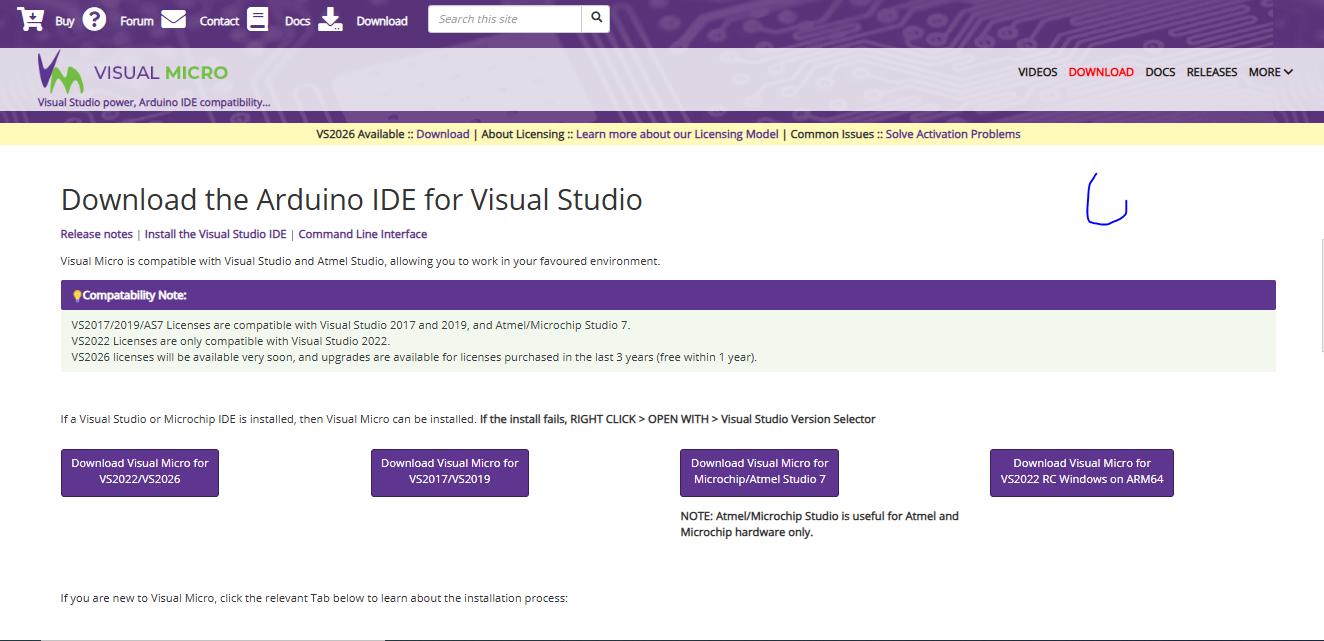
Installing Visual Micro for Arduino in Visual Studio 2026
- Install Visual Studio 2026 with desktop development components.
- Add Visual Micro via Extensions Marketplace.
- Configure Arduino IDE or CLI path in Visual Micro settings.
- Run an initial rescan to populate board and library references.
A visual walkthrough video helps clarify the mapping between Arduino environment and Visual Studio, ensuring rescans function correctly.
Best Uses for Visual Micro Rescan Solution
- After installing new boards or libraries
- Following Arduino IDE or core updates
- When IntelliSense shows false errors
- After moving Arduino installations
- During collaborative projects where project metadata differs
Scenario-Specific H3s:
- ESP32 Projects: Frequent core updates benefit from immediate rescans.
- STM32 Boards: Multi-core projects rely on correct toolchain indexing.
- Collaborative Teams: Synchronizes environment metadata across multiple machines.
Who Should Use Visual Micro Rescan Solution?
- Embedded developers using Visual Studio
- Advanced Arduino users managing multiple boards
- Teams collaborating on shared repositories
- Educators managing shared lab machines
Developers working exclusively in Arduino IDE do not need this feature.
How to Choose the Right Visual Micro Configuration
- Verify Arduino IDE/CLI source paths
- Avoid conflicting installations
- Keep board packages up to date
- Standardize library structures
- Run rescan only after structural changes
Consistency prevents recurring errors more effectively than repeated rescanning.
Common Mistakes to Avoid
- Duplicate library installations
- Ignoring path changes
- Overusing rescan as a routine fix
- Mixing portable and standard installations
- Assuming compiler errors are always code-related
Structured troubleshooting minimizes downtime and improves developer efficiency.
Future Trends in Visual Micro Rescan Solution (2026 Outlook)
- Deeper Arduino CLI Integration: Automatic mapping between CLI and Visual Studio.
- Smarter Environment Detection: AI-assisted conflict resolution and path discovery.
- Enhanced IntelliSense Mapping: More accurate editor-to-compiler alignment.
- Lightweight Project Structures: Reduced need for manual rescans with simplified metadata storage.
Frequently Asked Questions
Q1: Is Visual Micro free?
Visual Micro provides a free trial. Paid license required for full functionality in Visual Studio.
Q2: How does visual micro rescan solution fix missing boards?
It reindexes board packages and rebuilds references so newly installed or updated boards appear correctly.
Q3: How to add a library to Visual Micro?
Install via Arduino IDE or manually in libraries folder, then run rescan to refresh paths.
Q4: Why does IntelliSense show errors but code still compiles?
Outdated paths in IntelliSense may cause false errors. Running rescan synchronizes editor metadata with the compiler.
Q5: When should visual micro rescan solution be used?
After installing boards, updating Arduino, moving directories, or encountering reference errors.
Q6: Does rescan delete project files?
No. It only rebuilds references and metadata.
Q7: What causes repeated rescanning needs?
Frequent path changes, multiple Arduino installations, and duplicate libraries often trigger recurring synchronization issues.
FINAL THOUGHTS
The visual micro rescan solution is an essential tool for restoring synchronization, improving IntelliSense accuracy, and maintaining reliable builds. Proper installation, structured workflows, and strategic rescan use empower developers to avoid recurring environment issues, maximize productivity, and ensure a smoother Arduino development experience in Visual Studio 2026.