If you’ve used a Redragon mouse for more than a few days, you’ve probably had at least one moment where something didn’t stick. DPI changed back on restart. RGB ignored your settings. A side button just… stopped doing what you set it to do.
That’s usually when people start searching for Redragon mouse software. Not because the mouse is broken, but because Redragon hardware depends heavily on software to behave the way it’s supposed to.
This guide isn’t written from a spec sheet. It’s written from real-world use: setting up wired models, dealing with newer wireless and tri‑mode mice, fixing detection issues, and figuring out which software actually works in 2026. If you want your mouse to behave consistently, this is the part most people skip—and regret later.
What Is Redragon Mouse Software?
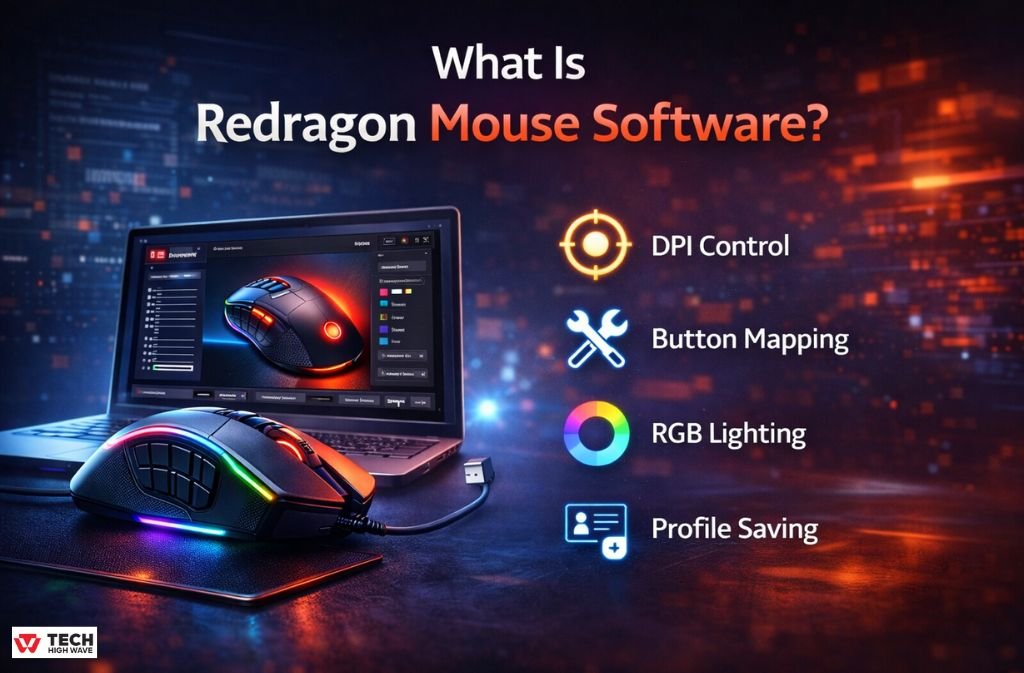
Redragon mouse software is the control panel for your mouse. It’s what allows you to move past factory defaults and actually decide how the mouse responds.
One thing that trips people up early: there is no single universal Redragon mouse driver. Each mouse family has its own software, and newer wireless models are starting to use a different system altogether. Installing the wrong one doesn’t partially work—it usually doesn’t work at all.
With the correct software, you can:
- Set and lock DPI levels
- Change polling rate behavior
- Reassign buttons and create macros
- Control RGB lighting
- Save profiles to the mouse itself (on supported models)
Without the software, the mouse still functions—but only in its most basic form.
How the Software Actually Works
At a basic level, the software acts as a middleman between Windows and the mouse’s internal memory.
When you open it, the software:
- Identifies the connected Redragon mouse
- Loads editable profiles inside the program
- Writes supported settings to the mouse’s onboard chip
- Keeps certain features active while it’s running
Some settings, like DPI(Dots per Inch) steps and button assignments, are usually saved directly to the mouse. Others—especially lighting effects and advanced macros—may stop working if the software is closed. This varies by model and is a common source of confusion.
Redragon Mouse Software in 2026: What’s Different Now
The Move Toward Redragon Central
Older Redragon mice were simple: one mouse, one driver. That’s no longer the case.
In 2026, Redragon is slowly shifting newer devices toward a unified system often called Redragon Central or Pro Series Hub.
Here’s how things currently stand:
- Newer 2025–2026 mice with wired + 2.4GHz + Bluetooth support often use a unified installer
- Older wired-only mice still rely on model-specific software
- Not every mouse supports Redragon Central yet
This mixed system is intentional. Redragon keeps legacy drivers stable while newer wireless mice get centralized updates.
A simple rule works most of the time: if your mouse has Bluetooth, start by looking for the unified or Pro-series software. If it’s wired-only, the older model-specific driver is usually correct.
Polling Rate and Modern Sensors
Most current Redragon gaming mice use PixArt sensors like the PAW 3311 or PAW 3395. These sensors are capable of very high polling rates, but those settings are not fully enabled out of the box.
By default, many mice ship at 500Hz or 1000Hz to reduce power draw—especially on wireless models. The software is required if you want to:
- Enable higher polling rates (up to 4000Hz on supported mice)
- Restrict high polling to wired or 2.4GHz modes
- Avoid draining the battery in Bluetooth mode
If you’re using a high‑refresh monitor, properly setting the polling rate makes a noticeable difference in cursor stability and click response.
Redragon Software Features That Actually Improve Your Gaming
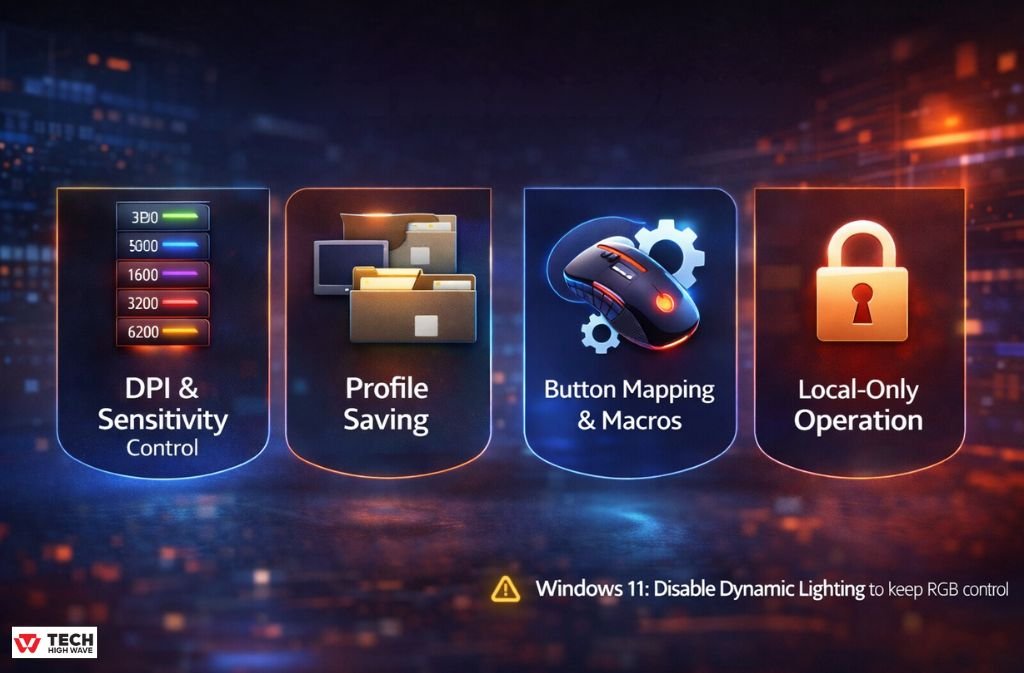
DPI and Sensitivity Control
Good Redragon software doesn’t just let you type in numbers. It shows DPI steps clearly and lets you fine-tune sensitivity without guessing. This is especially useful if you play multiple games with different sensitivity needs. Similar precision and control can also be found in TMKB Mouse Software Download (Official Drivers & Fixes 2026), which offers step-by-step adjustment and driver support for smooth performance.
Profile Saving
Profiles are what make the software useful long-term. Depending on the mouse, profiles may be saved:
- Directly to the mouse
- Locally on the PC
- Or both
If your mouse has onboard memory, saving profiles there prevents resets when switching systems. Similar setup and profile management options are available in Akitsu Mouse Software 2025: Official Setup, Settings & Optimization Guide, allowing for smooth customization across different systems.
Button Mapping and Macros
Most Redragon gaming mice allow full button reassignment. Even if you don’t use complex macros, simple remaps can make daily use smoother.
Local‑Only Operation
Redragon software runs locally. No accounts, no cloud sync, no forced logins. For many users, that’s a feature, not a limitation.
When the Software Is Actually Worth Installing
You’ll get the most value from the software if you:
- Play FPS games and care about consistent aim
- Use MMOs or MOBAs with ability macros
- Switch between multiple PCs
- Use wireless or tri‑mode mice
For light office use, it’s optional. For gaming, it’s hard to justify skipping it.
Choosing the Right Software Version
Most Redragon issues come down to installing the wrong software.
Before downloading anything:
- Check the exact model name on the bottom of the mouse
- Match the software to that specific model
- Confirm Windows compatibility (Windows 10 or 11)
- Use Pro or Central software only if the mouse supports it
If the mouse isn’t detected, the software version is usually the problem—not the mouse.
Common Setup Mistakes
These cause most of the problems people run into:
- Installing software for a similar-looking model
- Not running the installer as administrator
- Using USB hubs or monitor USB ports
- Expecting all settings to save without onboard memory
- Closing the software when features depend on it
Fixing these usually resolves issues immediately.
USB Hubs and Detection Problems (Very Common)
High‑DPI mice often fail to detect properly when connected through USB‑C hubs, docking stations, or monitor pass‑through ports.
For setup and firmware updates, always connect the mouse directly to a motherboard or main laptop USB port. Once configured, you can experiment with other connections, but direct ports remain the most reliable.
Step‑by‑Step: Setting Up New Wireless and Tri‑Mode Mice
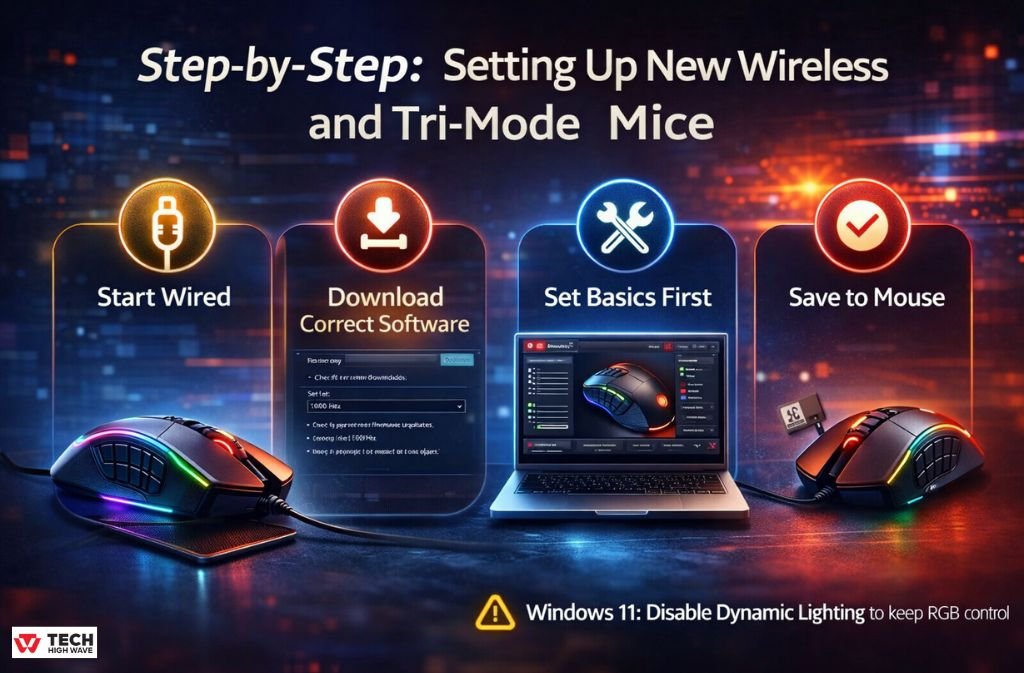
1. Start Wired
Use the included USB‑C cable for initial setup. Firmware updates and profile syncing are more reliable over a wired connection.
2. Download the Correct Software
Go to the official Redragon site for your region and search by exact model number. Newer models may list a unified or Pro‑series installer. Always run it as an administrator.
3. Set the Basics First
- Check for firmware updates
- Set polling rate to 1000Hz (higher only if supported)
- Adjust sleep timers on wireless models
4. Save to the Mouse
Apply settings and save them to the device. After that, you can unplug the cable and switch to the 2.4GHz dongle if applicable.
Windows 11 Note: Windows Dynamic Lighting can override Redragon RGB control. If lighting changes don’t apply, disable Dynamic Lighting under Personalization settings.
Which Redragon Mouse Should You Buy in 2026? Full Comparison
| Mouse Model | Connection | Sensor | Max Polling | Software | Notes |
| M916 King | Wired / 2.4GHz / BT | PAW 3395 | 4000Hz | Redragon Central | FPS‑focused |
| M913 Pro | Wired / 2.4GHz / BT | PAW 3311 | 1000Hz | Unified Driver | MMO‑friendly |
| M808 Storm | Wired | PAW 3327 | 1000Hz | Model‑Specific | Budget classic |
| M711 Cobra | Wired | PAW 3325 | 1000Hz | Model‑Specific | Entry‑level |
| M686 Vampire Elite | Wired / 2.4GHz | PAW 3335 | 1000Hz | Unified Driver | Hybrid wireless |
| M601 RGB | Wired | Basic Optical | 500Hz | Model‑Specific | Basic use |
FAQs
Q. Where is Redragon mouse software headed in 2026?
Redragon is moving toward a more unified software experience. Expect fewer separate installers, stronger support for wireless and tri-mode mice, smoother performance on Windows 11, and more reliable firmware updates. The focus remains on local control, so you can manage DPI, macros, and RGB without relying on cloud services.
Q. What is Redragon Mouse Software and why do I need it?
Redragon Mouse Software is the control panel that lets you customize your mouse beyond factory defaults. From DPI adjustments to RGB lighting and button macros, it ensures your Redragon mouse performs exactly how you want it—especially for gaming or multi-PC setups.
Q. How do I install Redragon software for my mouse in 2026?
First, check your exact mouse model and whether it uses Redragon Central or a model-specific driver. Download the correct software from the official site, run it as administrator, and follow the on-screen setup. Always start with a wired connection for firmware updates and profile saving.
Q. Why isn’t my Redragon mouse saving DPI or RGB settings?
Some Redragon mice save only certain settings onboard. DPI and button mapping usually persist, but RGB effects or advanced macros may require the software to be running. Make sure you save profiles correctly and check if your mouse supports onboard memory.
Q. Can Redragon software work with wireless or tri-mode mice?
Yes! Most newer Redragon mice that support wired + 2.4GHz + Bluetooth can use Redragon Central or the Pro-series software. Start setup with a wired connection to update firmware and save profiles, then switch to wireless modes once everything is configured.
Q. Which Redragon mouse software version should I download?
Always match the software to your exact model and Windows version. Wired-only mice often use model-specific drivers, while 2025–2026 wireless mice usually require Redragon Central. Installing the wrong version is the main reason mice aren’t detected, or settings don’t stick.
Final Thoughts
Redragon mouse software isn’t flashy, but it’s necessary. When the correct version is installed and the mouse is set up properly, most problems disappear. The key is slowing down during setup, using the right software, and saving settings correctly the first time.
Related: Captain 300 Software: What It Does, What It Doesn’t, and How to Actually Use the Headset in 2026