| TL;DR — Quick Fix Checklist
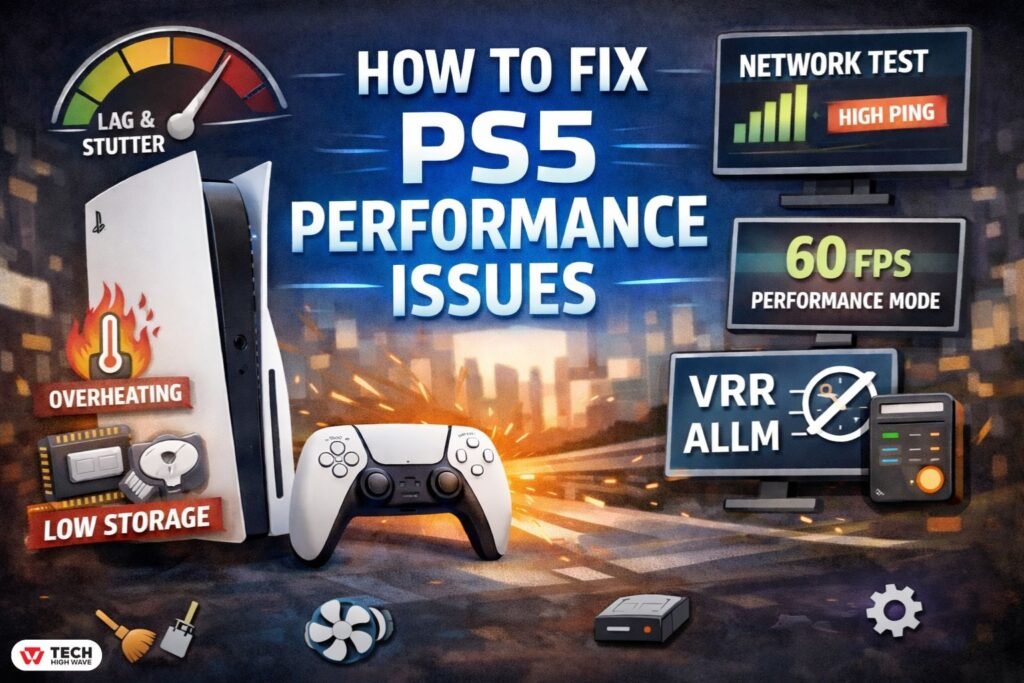
Most PS5 lag, stuttering, frame drops, and slow menus come from four areas:
Start here:
Hardware failure is rare. System friction is common. |
PlayStation 5 performance issues rarely arrive with a warning. One day everything feels smooth. The next, a game starts hitching, menus hesitate, or online matches feel off despite a stable connection.
There’s nothing worse than noticing a micro-stutter mid-boss fight or feeling your input delay at the worst possible moment. The console isn’t crashing. It just doesn’t feel right.
That distinction matters.
Most PS5 performance problems are not hardware failures. They’re friction. Storage pressure, background activity, display settings, firmware quirks, thermal buildup, and network routing all overlap. A small imbalance in one area can quietly affect the others.
It’s similar to how people assume AirPods to PS5 should work seamlessly because they do everywhere else, or how PS5 controller drift appears gradually instead of all at once. The problem feels sudden. The cause builds over time.
This guide explains how to fix PS5 performance issues in 2026 using practical, targeted adjustments — not extreme resets or unnecessary hardware replacements.
Common Causes of PS5 Performance Issues
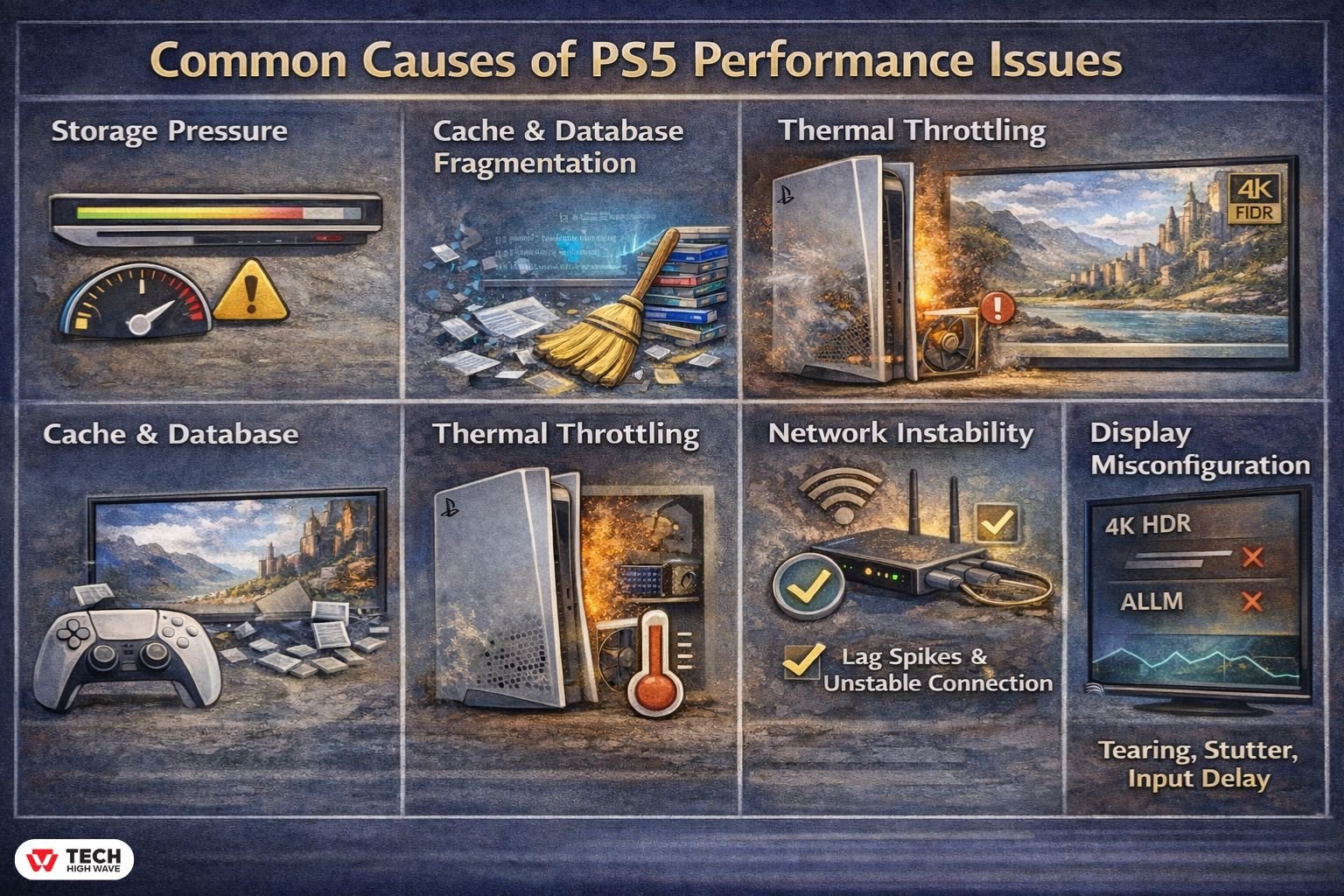
Understanding the cause prevents unnecessary fixes.
-
Storage Pressure
The PS5 SSD is extremely fast — but it still requires free space for caching and background operations.
In 2026, with 200GB+ titles becoming normal, a flat “100GB free” rule is no longer enough. A better guideline:
Keep at least 15% of your internal SSD free.
When storage becomes tight:
- Updates slow down
- Asset streaming stutters
- Background tasks interfere with gameplay
- Menu navigation becomes sluggish
Running near full capacity is like driving with the fuel light permanently on. It still works — just not efficiently.
-
Cache and Database Fragmentation
Temporary files build up constantly. Over time, disorganized data references reduce responsiveness.
Symptoms include:
- Slow PS5 menu navigation
- Random freezes
- Delayed game launching
- Minor frame pacing instability
Rebuilding the database reorganizes system data without deleting games. It is one of the most effective fixes for gradual performance decline.
-
Thermal Throttling (Overheating Performance Drops)
The PS5 protects itself from heat by lowering performance when internal temperatures rise.
This is called thermal throttling.
It doesn’t display an error. It just quietly reduces performance.
Common triggers:
- Enclosed cabinet placement
- Dust buildup
- Long gaming sessions
- Poor airflow behind the console
Users upgrading to Gen5 M.2 SSDs should pay special attention. While Gen5 drives offer higher peak speeds, they generate more heat than Gen4 models. Without proper heatsinks and airflow, thermal throttling can offset their performance advantage.
Faster storage doesn’t help if it runs too hot.
-
Network Instability (Not Speed)
Many assume PS5 lag equals slow internet. It usually doesn’t.
Online performance depends on:
- Packet consistency
- Routing efficiency
- NAT behavior
- Interference
You can have fast download speeds and still experience lag due to congestion or unstable routing.
For best results:
- Use wired Ethernet when possible
- If using WiFi, connect via WiFi 6E or WiFi 7 on compatible routers
- Ensure NAT Type 2
- Avoid copying DNS settings blindly without understanding router compatibility
-
Display Misconfiguration (Often Overlooked)
Some performance issues aren’t console-related at all.
HDMI 2.1 features dramatically affect gameplay feel.
Key settings:
- VRR (Variable Refresh Rate) – Reduces screen tearing and frame pacing issues
- ALLM (Auto Low Latency Mode) – Reduces input lag
If VRR is disabled, normal frame fluctuation can appear as stutter.
If ALLM is inactive, input delay increases even when the PS5 is running correctly.
Not all HDMI 2.1 TVs fully support VRR, even when advertised. Always confirm compatibility.
The PSSR 2.0 Factor: AI Upscaling as a Performance Fix (2026 Update)
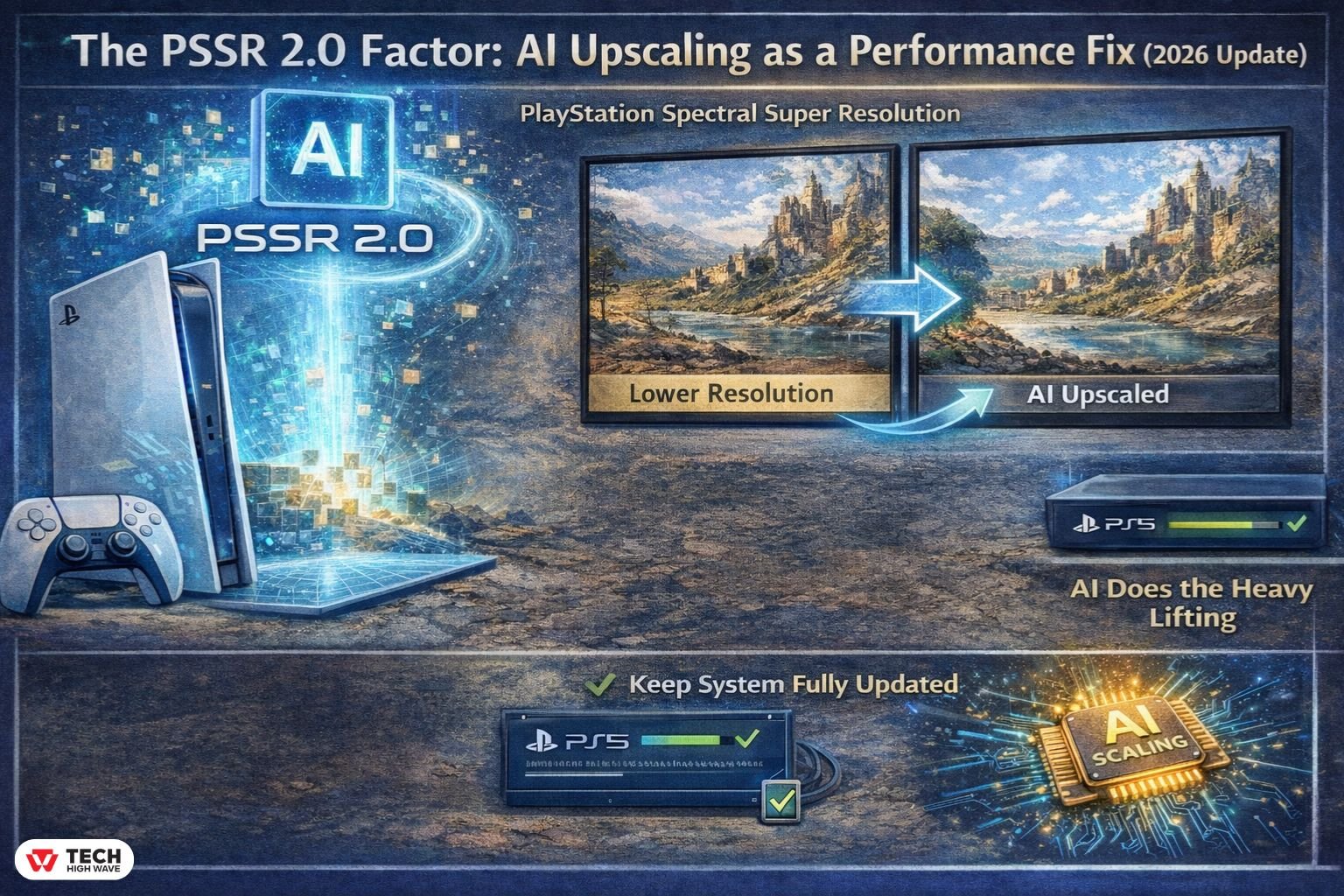
In 2026, performance optimization shifted significantly with expanded support for PSSR 2.0 (PlayStation Spectral Super Resolution).
PSSR uses AI-driven upscaling to reconstruct visual detail instead of rendering at full native resolution. This reduces GPU strain and improves frame stability.
On PS5 Pro, this is more aggressive and impactful.
On base PS5 models, certain improvements are backported via firmware and game patches.
Ensuring your system software and games are fully updated allows these optimizations to activate properly.
In some cases, smoother performance isn’t about changing settings — it’s about allowing AI-driven scaling to do its job.
How to Fix PS5 Performance Issues Quickly (Step-by-Step)
If you want a clear action order, follow this:
- Fully power off the PS5 (not Rest Mode)
- Restart and check for system updates
- Enter Safe Mode → Clear Cache → Rebuild Database
- Ensure at least 15% SSD space is free
- Switch games to Performance Mode
- Enable VRR and ALLM on both PS5 and TV
- Improve ventilation and remove dust
- Test network stability and verify NAT type
This sequence resolves the majority of PS5 stuttering, lag, slow menus, and frame drops without deleting content.
Quick Diagnostic: Symptom → Cause → Fix
| Symptom | Likely Cause | Best Fix |
| Slow PS5 menu | Cache buildup | Clear cache + rebuild database |
| Frame drops | Resolution mode overload | Switch to Performance mode |
| Input lag | ALLM disabled | Enable ALLM |
| Screen tearing | VRR inactive | Activate VRR |
| Sudden slowdown after long sessions | Thermal throttling | Improve airflow |
| Online lag | Routing instability | Use wired connection / adjust router |
Firmware Matters: The January 2026 Stability Update
The January 2026 firmware update (Version 26.01-12.60.00), widely joked about for its “improved stability” note, quietly resolved a VRR-related stutter affecting certain HDMI 2.1 displays.
Keeping system software current ensures these fixes are applied.
Sometimes performance improves simply by staying updated.
When Optimization Works Best
Fixes are most effective when problems appear inconsistently.
Common situations include:
- Lag during online play despite strong internet
- Frame instability after system or game updates
- Gradual home screen slowdown
- Stuttering in open-world titles
- Performance dips after installing new storage
Targeted adjustments usually restore stability without repairs.
Mistakes That Make PS5 Performance Worse
- Reinstalling games repeatedly without addressing system conditions
- Letting internal storage approach full capacity
- Placing the console in confined cabinets
- Using third-party cooling add-ons that restrict airflow
- Copying random DNS settings without understanding network setup
Focused troubleshooting prevents unnecessary disruption.
Who Benefits Most From These Fixes?
This approach works best for:
- Consoles that previously ran well
- Shared household networks
- Systems with limited remaining storage
- Long-term users noticing gradual decline
Persistent overheating or confirmed hardware faults may require servicing.
Frequently Asked Questions
How can PS5 performance issues be resolved quickly?
Restart the console, clear cache, rebuild the database, and enable Performance Mode.
Why does a PS5 lag with fast internet?
Lag is usually caused by routing instability, packet loss, or NAT configuration — not download speed.
Does rebuilding the database improve PS5 performance?
Yes. It reorganizes system data and often restores responsiveness.
Can overheating reduce PS5 performance?
Yes. The system automatically lowers performance when internal temperatures rise.
Is Performance Mode better than Resolution Mode?
Performance Mode prioritizes frame stability, which improves gameplay smoothness.
Does low free storage affect PS5 speed?
Yes. Limited space slows background processes and increases loading delays.
Can display settings cause PS5 stuttering?
Yes. Disabled VRR or inactive ALLM can create stutter or input lag.
Final Thoughts
Solving PS5 performance issues rarely requires extreme action.
The system isn’t broken. It’s overloaded.
Maintaining free storage, ensuring proper airflow, stabilizing network conditions, updating firmware, and configuring display features correctly resolve most performance complaints.
In 2026, optimization is less about panic fixes and more about understanding how the system balances load, heat, and rendering.
Most slowdowns are fixable.
And most of the time, your PS5 just needs breathing room — not replacement.
Also Related: Strike Pack PS5 in 2026: Native DualSense Support, Real Ban Risks, and Whether It’s Still Worth It