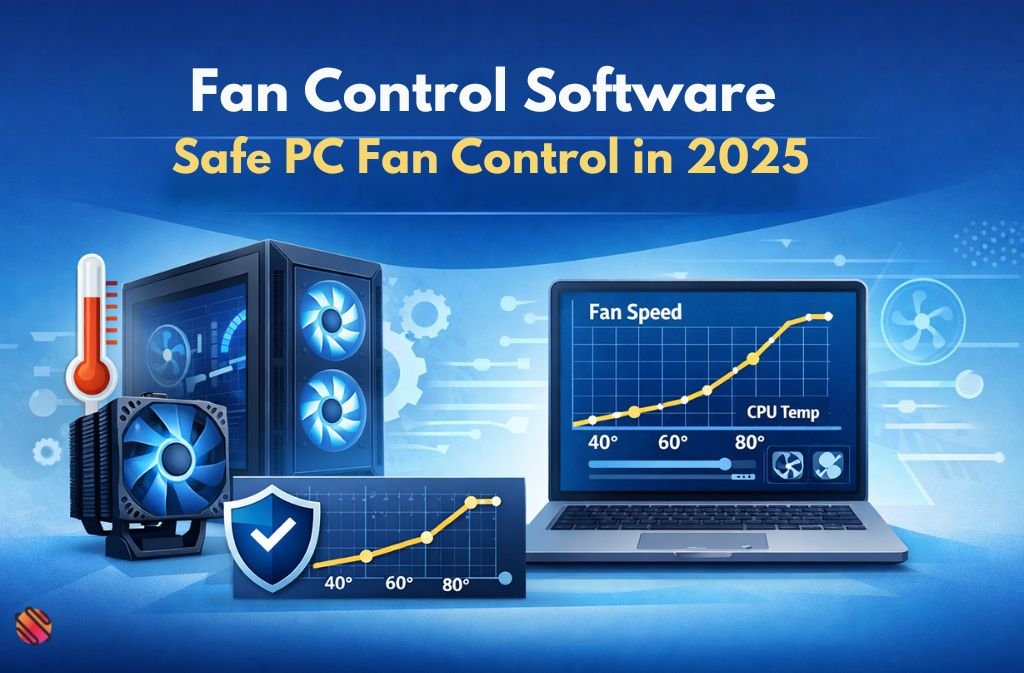
Few things ruin a PC experience faster than fans that sound like a jet engine—especially when you’re just browsing the web. That’s why fan control software has become essential for modern PCs in 2025.
Out of the box, most systems rely on BIOS defaults that prioritize safety over comfort. The result? Fans ramp up too aggressively, stay loud at idle, or ignore your actual usage patterns. Fan control software fixes this by letting you create custom fan curves based on real temperature data from your CPU, GPU, and motherboard sensors.
But there’s a catch. Not all fan control tools are safe, compatible, or worth using—especially on laptops or AIO-cooled systems. Misconfigured fan curves can cause overheating, instability, or unnecessary wear.
This guide cuts through the confusion.
You’ll learn:
-
What fan control software actually does
-
Which tools are safe and effective in 2025
-
How to control PC fan speed step by step
-
Common mistakes that damage hardware
-
When software control is better than BIOS—and when it isn’t
If you want a quieter PC without risking performance, this is the guide you were looking for.
What Is Fan Control Software?
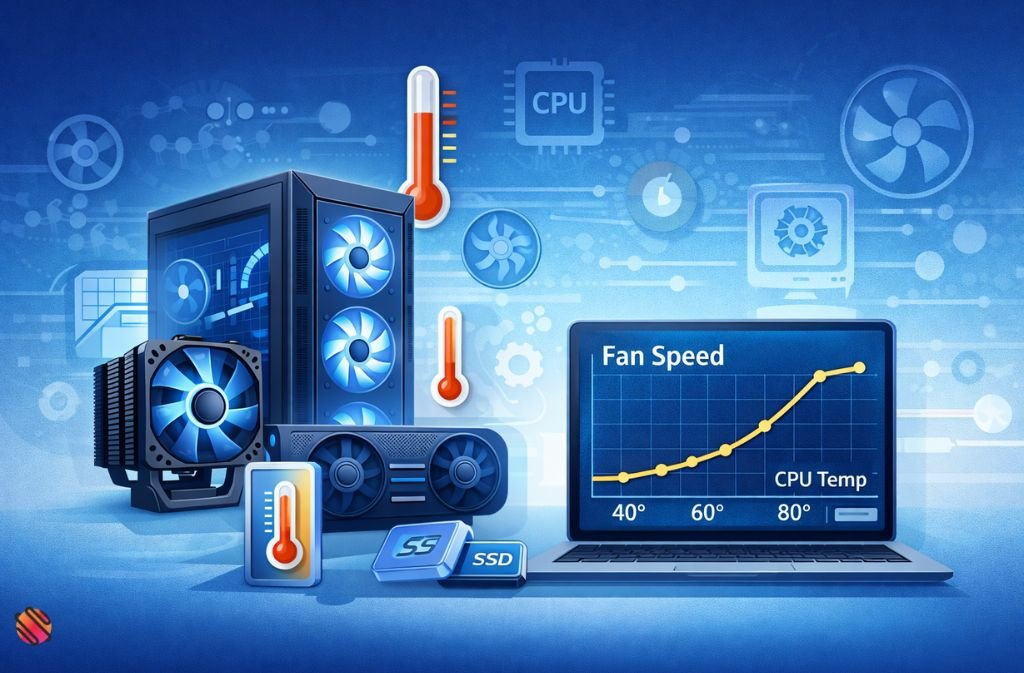
Fan control software is a utility that lets you manually or automatically control fan speed based on temperature sensors inside your PC.
Instead of fixed RPM values, modern tools use fan curves, which map temperature to fan speed dynamically.
What It Can Control
-
CPU fans
-
Case fans
-
GPU fans (limited)
-
AIO radiator fans (varies by hardware)
What It Reads
-
CPU temperature
-
GPU temperature
-
Motherboard sensors
-
Sometimes VRM or SSD temps
BIOS vs Fan Control Software (Important Difference)
| Feature | BIOS Fan Control | Fan Control Software |
|---|---|---|
| Ease of use | Medium | Easy |
| Real-time adjustment | ❌ | ✅ |
| Multiple temp sources | ❌ | ✅ |
| Per-app behavior | ❌ | ✅ |
| Risk if misused | Low | Medium |
Rule of thumb (2025):
-
BIOS = baseline safety
-
Software = comfort + optimization
Never disable BIOS protections completely.
Best Fan Control Software Options (2025)
| Software | Best For | Cost | Skill Level |
|---|---|---|---|
| FanControl (Rem0o) | Most users | Free | Beginner–Advanced |
| Argus Monitor | Power users | Paid | Advanced |
| SpeedFan | Legacy systems | Free | Advanced |
| OEM Tools | Laptops | Free | Beginner |
FanControl (Recommended)
-
Modern UI
-
Actively updated
-
Strong community trust
-
Supports custom fan curves
-
Excellent Windows 11 compatibility
Also Read: Best Laser Engraver Software in 2025 (Free vs Paid Compared)
How to Control PC Fan Speed With Software (Step-by-Step)
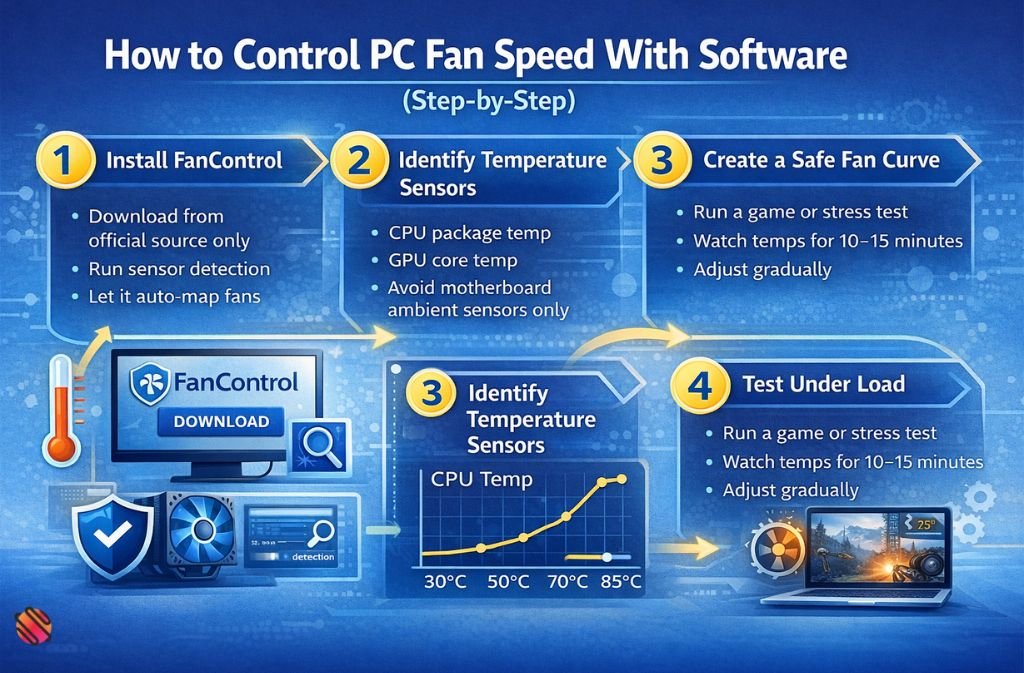
1: Install FanControl
-
Download from the official source only
-
Run sensor detection
-
Let it auto-map fans
2: Identify Temperature Sensors
-
CPU package temp
-
GPU core temp
-
Avoid motherboard ambient sensors only
3: Create a Safe Fan Curve
Beginner-safe example:
-
30°C → 25%
-
50°C → 45%
-
70°C → 70%
-
85°C → 100%
Step 4: Test Under Load
-
Run a game or stress test
-
Watch temps for 10–15 minutes
-
Adjust gradually
Laptop Fan Control (What You Must Know)
Most laptops do not allow full fan control due to:
-
Embedded controller restrictions
-
OEM thermal design
-
Battery safety limits
What Usually Works
-
Manufacturer utilities (HP, Dell, Lenovo)
-
Limited third-party tools
What Usually Doesn’t
-
Direct RPM control
-
Custom fan curves
If your laptop overheats: clean vents, repaste, undervolt—software alone won’t fix poor cooling.
AIO and GPU Fan Control Explained
AIO Fans
-
Usually controlled via motherboard headers
-
Software works only if headers expose RPM control
GPU Fans
-
Mostly controlled by the GPU BIOS
-
MSI Afterburner is more reliable than general fan tools
Common Fan Control Mistakes (Avoid These)
-
❌ Setting fans too low at high temps
-
❌ Disabling BIOS safety limits
-
❌ Using outdated tools (SpeedFan on modern PCs)
-
❌ Ignoring GPU temps
-
❌ Copy-pasting curves from Reddit without testing
Also Read: What Is VBOX Software? VirtualBox vs Racelogic Explained (2025)
2025 Fan Control Best Practices
-
Keep CPU under 85°C sustained
-
Prioritize noise stability, not silence
-
Use gradual fan ramps
-
Monitor temps after Windows updates
-
Re-test curves every 6–12 months
Quick Fan Control Checklist
-
✅ BIOS protections enabled
-
✅ Software auto-start enabled
-
✅ Safe max fan speed defined
-
✅ CPU & GPU temps monitored
-
✅ Stress-tested configuration
FAQs
Q. What software can control PC fans?
Several fan control software tools can control PC fan speed, including FanControl, Argus Monitor, and some manufacturer (OEM) utilities. Compatibility depends on your motherboard, fan headers, and sensor support. Desktop PCs typically offer the best compatibility, while laptops are more limited.
Q. Is fan control software safe to use?
Yes, fan control software is safe when used correctly. Keep BIOS thermal protections enabled and avoid overly aggressive fan curves. As long as fans ramp up at higher temperatures, software-based fan control does not damage hardware and can actually improve cooling efficiency and noise levels.
Q. How can I control my CPU fans?
You can control CPU fans through the BIOS or by using fan control software that reads CPU temperature sensors. Software-based control allows real-time adjustments and custom fan curves, making it easier to balance cooling performance and noise compared to static BIOS settings.
Q. Can I control laptop fans with software?
In most cases, laptop fan control is restricted. Many laptops only allow fan adjustments through official manufacturer tools due to hardware and safety limitations. Third-party fan control software often has limited or no access to laptop fan controllers, especially on modern Windows 11 systems.
Q. Is SpeedFan still good in 2025?
No, SpeedFan is outdated in 2025. It has limited support for modern motherboards, CPUs, and Windows 11. Newer fan control software like FanControl or Argus Monitor offers better sensor detection, safer fan curve management, and ongoing updates.
Conclusion
Fan control software isn’t about forcing silence—it’s about smart balance. When configured properly, it reduces noise, extends hardware life, and keeps your system stable under real workloads.
In 2025, tools like FanControl make this easier than ever, but success still depends on understanding your hardware and respecting thermal limits. Avoid aggressive curves, test thoroughly, and don’t expect laptop-level miracles from desktop solutions—or vice versa.
If you want a quieter PC without risking damage, start small, adjust gradually, and let temperature—not guesswork—drive your fan behavior.
Related: JPRO Software: Complete 2025 Guide to Heavy-Duty Truck Diagnostics