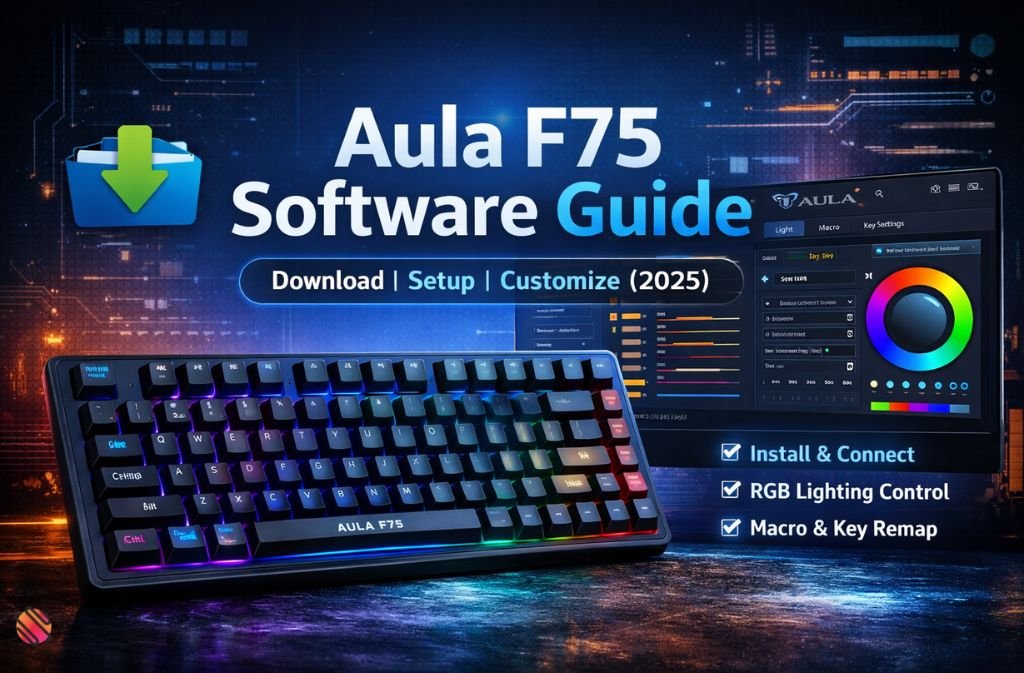
The Aula F75 mechanical keyboard stands out in the crowded 75% keyboard market for one simple reason: it delivers premium features without unnecessary complexity. With hot-swappable switches, a compact layout, and solid build quality, it’s designed for users who want both performance and flexibility.
Where most confusion begins, however, is with Aula F75 software.
Search results are filled with partial answers, outdated driver links, and forum threads that assume prior knowledge. Many users end up asking the same questions: Does the Aula F75 have software? Where do I download it? Why isn’t it detecting my keyboard?
This guide solves all of that.
As of 2025, the Aula F75 is the official way to unlock RGB lighting control, key remapping, macro creation, and profile management on Windows. Whether you’re using the standard Aula F75, Aula F75 Pro, or Epomaker x Aula F75, this article explains exactly how the software works, how to install it correctly, and how to avoid the most common setup mistakes.
By the end, you’ll have a fully customized keyboard—and a clear understanding of what the software can (and can’t) do.
Aula F75 Software Setup (Quick Summary)
|
What Is Aula F75 Software?
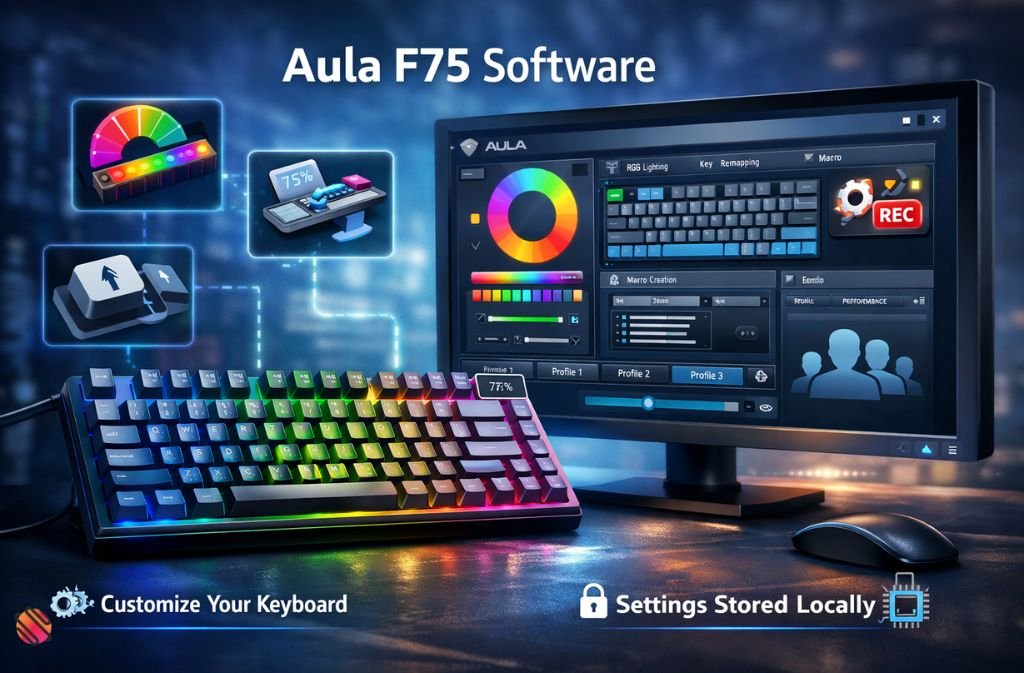
Aula F75 software is a Windows-based configuration tool that allows you to customize how your keyboard looks and behaves beyond factory defaults.
Without the software, the keyboard operates using preset lighting effects and fixed key assignments. With it, you gain full control.
Core Features of Aula F75 Software
-
RGB lighting customization (effects, colors, brightness)
-
Key remapping across standard and function layers
-
Macro creation for gaming and productivity
-
Multiple profile management
-
Basic performance tuning (model-dependent)
This software is not cloud-based and does not require an account. All settings are stored locally or on the keyboard, depending on the model.
Does the Aula F75 Have Software?
Yes. The Aula F75 has official software, available for Windows systems.
The confusion usually comes from branding. Some keyboards are sold directly under AULA, while others are marketed as Epomaker x Aula F75. Both versions use functionally identical software, although the download location and branding may differ.
What matters is downloading the version that matches your keyboard’s brand name.
Aula F75 Software Download (Official Sources Only)
To avoid compatibility issues or security risks, always download the software from official brand websites.
Supported Models
-
Aula F75
-
Aula F75 Pro
-
Epomaker x Aula F75
-
Aula F75 Max (region-dependent)
Where to Download
-
Aula official website → Software or Support section
-
Epomaker official driver page → For Epomaker-branded units
Avoid third-party driver websites or modified software packages. These frequently cause detection errors and may contain unwanted files.
System Requirements (2025)
Before installing, confirm your setup meets these requirements:
-
Windows 10 or Windows 11 (64-bit)
-
Wired USB connection
-
Administrator access
-
Standard USB-C data cable
macOS is not supported for customization as of 2025.
How to Install Aula F75 Software (Step-by-Step)
Follow these steps exactly to avoid detection issues.
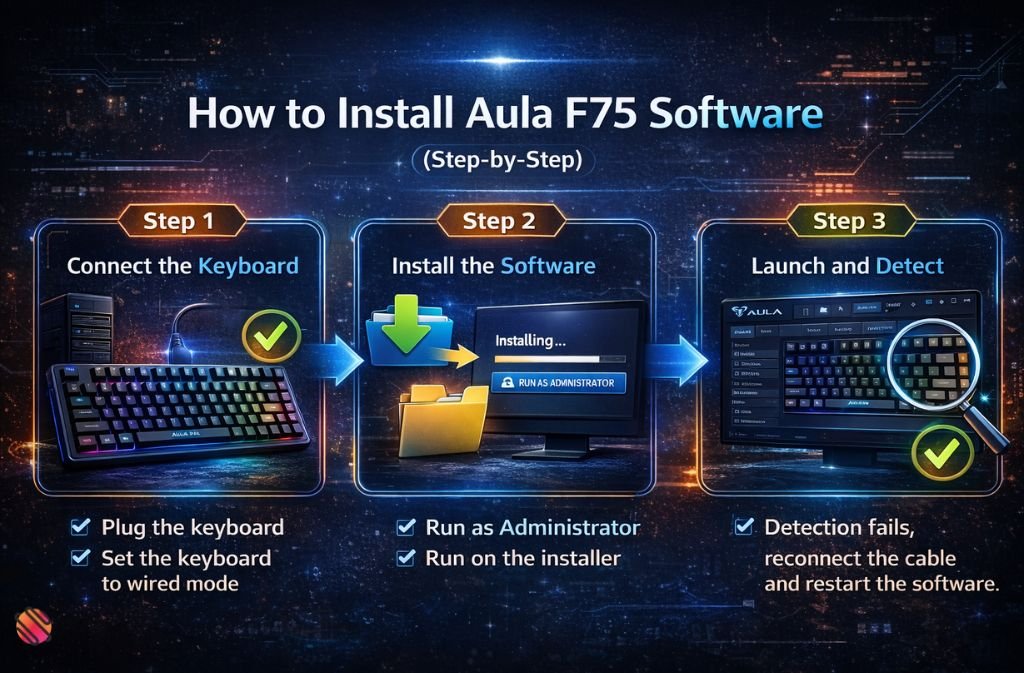
1: Connect the Keyboard
-
Plug the keyboard into your PC using a USB cable
-
Set the keyboard to wired mode
-
Avoid Bluetooth during setup
2: Install the Software
-
Extract the downloaded ZIP file
-
Right-click the installer → Run as Administrator
-
Complete the installation process
3: Launch and Detect
-
Open the Aula F75 software
-
Wait a few seconds for automatic detection
-
The keyboard layout should appear on screen
If detection fails, reconnect the cable and restart the software.
How to Use Aula F75 Software (Beginner-Friendly Walkthrough)
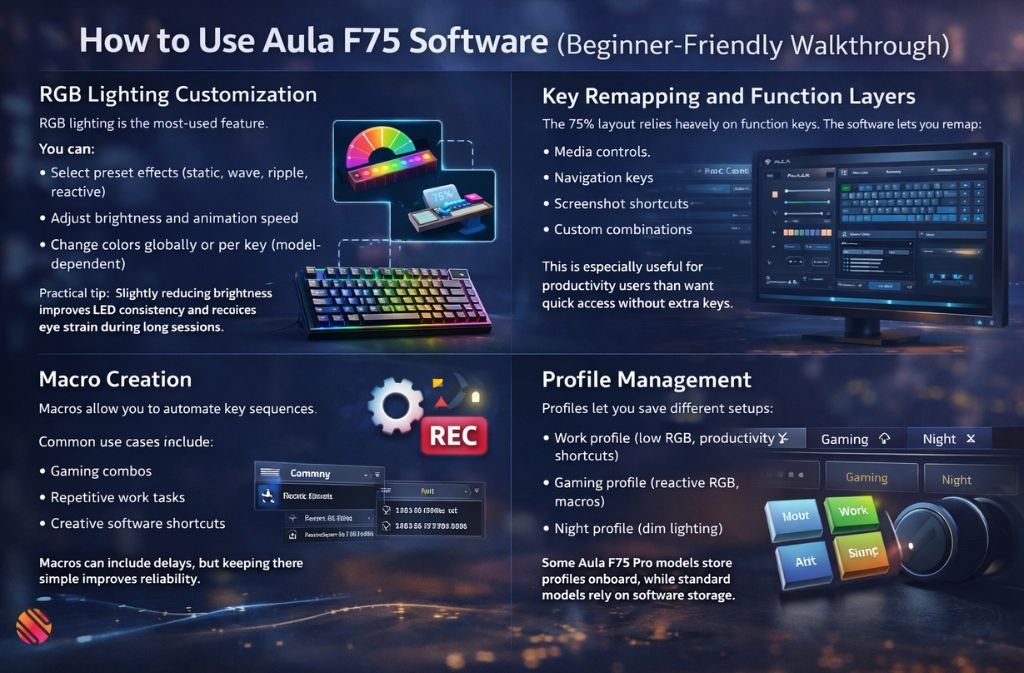
RGB Lighting Customization
RGB lighting is the most-used feature.
You can:
-
Select preset effects (static, wave, ripple, reactive)
-
Adjust brightness and animation speed
-
Change colors globally or per key (model-dependent)
Practical tip: Slightly reducing brightness improves LED consistency and reduces eye strain during long sessions.
Key Remapping and Function Layers
The 75% layout relies heavily on function keys. The software lets you remap:
-
Media controls
-
Navigation keys
-
Screenshot shortcuts
-
Custom combinations
This is especially useful for productivity users who want quick access without extra keys.
Macro Creation
Macros allow you to automate key sequences.
Common use cases include:
-
Gaming combos
-
Repetitive work tasks
-
Creative software shortcuts
Macros can include delays, but keeping them simple improves reliability.
Profile Management
Profiles let you save different setups:
-
Work profile (low RGB, productivity shortcuts)
-
Gaming profile (reactive RGB, macros)
-
Night profile (dim lighting)
Some Aula F75 Pro models store profiles onboard, while standard models rely on software storage.
Aula F75 vs Aula F75 Pro Software
| Feature | Aula F75 | Aula F75 Pro |
|---|---|---|
| RGB Control | Yes | Yes |
| Key Remapping | Yes | Yes |
| Macro Depth | Basic | Advanced |
| Onboard Profiles | Limited | Yes |
| Firmware Updates | Rare | Supported |
The software interface is nearly identical, but Aula F75 Pro offers better macro handling and profile storage.
Common Aula F75 Software Problems (and Fixes)
Software Not Detecting Keyboard
-
Use wired mode only
-
Try a different USB port
-
Run the software as administrator
RGB Settings Not Saving
-
Click “Apply” before switching tabs
-
Save changes to a profile
Keys Not Working After Remap
-
Reset to default
-
Avoid overlapping macros
-
Reassign keys one at a time
Antivirus Warnings
False positives occur with peripheral software. Only whitelist files downloaded from official sources.
Expert Tips for Better Experience (2025)
-
Keep a clean default profile as a backup
-
Export profiles after major changes
-
Avoid firmware updates unless necessary
-
Restart the software after Windows updates
-
Use wired mode when making changes
2025 Outlook: What to Expect from Aula Software
Based on recent updates:
-
UI improvements are gradual
-
Stability is improving
-
Cloud sync is still unavailable
-
macOS support remains unlikely in the near term
The software focuses on reliability rather than flashy features, which suits most users.
FAQs
Q. Does the Aula F75 have software?
Yes. The Aula F75 has official Windows software that enables RGB lighting customization, key remapping, macros, and profile management.
Q. Is there a software for Aula F75 keyboard?
Yes. Aula provides dedicated software for the Aula F75 keyboard, including standard, Pro, and Epomaker-branded versions.
Q. How do I download Aula F75 software?
You can download Aula F75 software from Aula’s official website or Epomaker’s driver page, depending on your keyboard branding.
Q. How do I install Aula F75 software on Windows?
Connect the keyboard via USB, run the installer as administrator, complete the installation, and launch the software to detect the keyboard automatically.
Q. How do I connect Aula F75 to the software?
The Aula F75 must be connected in wired USB mode. Bluetooth connections are not supported during setup or configuration.
Q. Does Aula F75 software work on Mac?
No. As of 2025, Aula F75 is only available for Windows. macOS users can use the keyboard but not customize it.
Q. Can I use Aula F75 without software?
Yes. The keyboard works with default settings, but RGB control, macros, and key remapping require the software.
Q. Is Aula F75 Pro software different?
The interface is the same, but Aula F75 Pro models typically support deeper macro functions and onboard profile storage.
Conclusion
The Aula F75 software is essential for anyone who wants more than the default keyboard behavior. Once installed correctly, it gives you practical control over lighting, keys, and macros without unnecessary complexity.
For best results, download the official version, use wired mode during setup, and build profiles gradually. With the right setup, the Aula F75 becomes a keyboard tailored exactly to how you work or play.
Stay updated with the latest in technology at TechHighWave.