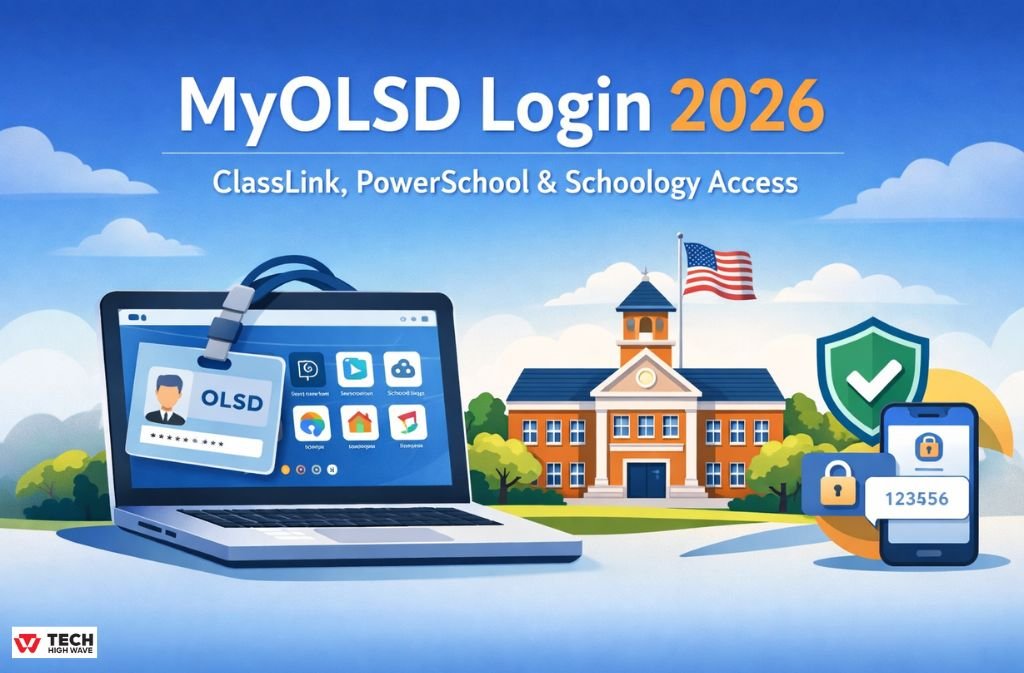
TL;DR (MyOLSD Login – 2026)
- The official MyOLSD login is https://launchpad.classlink.com/olentangy
- ClassLink is required to access PowerSchool, Schoology, and OLSD learning apps
- Most login problems are caused by expired bookmarks, browser cache, or MFA prompts
It’s 7:30 AM. Your student’s assignment is due, the bus is pulling up, and the MyOLSD portal is spinning.
If that sounds familiar, you’re not alone. Every school year—especially during the first week—parents and students search for “MyOLSD login” after hitting broken links, login loops, or apps that refuse to open. The issue usually isn’t your password. It’s how the system works.
Once you understand how MyOLSD, ClassLink, PowerSchool, and Schoology connect in 2026, logging in becomes simple—and predictable.
Quick Answer: Official MyOLSD Login (2026)
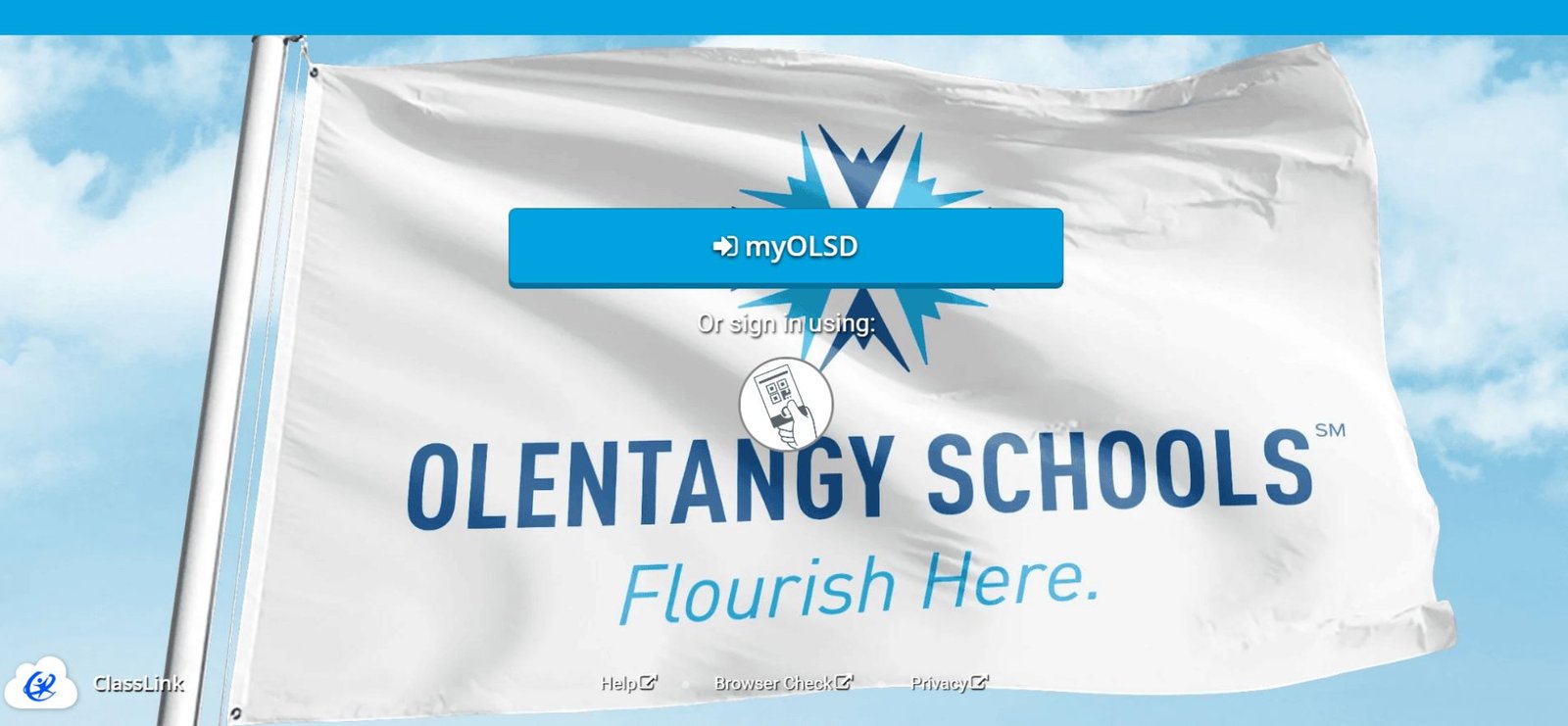
The official MyOLSD login is accessed through the Olentangy ClassLink LaunchPad:
👉 https://launchpad.classlink.com/olentangy
Students and staff sign in using their OLSD district email and password. After logging in, ClassLink provides single sign-on (SSO) access to PowerSchool, Schoology, Google Workspace, Lexia, and other Olentangy Local School District tools.
What Is MyOLSD? (And What It’s Not)
MyOLSD is not a downloadable app and not a standalone website you manage manually.
It’s the district-wide login system used by Olentangy Local School District (OLSD) to authenticate users and route them into approved school platforms.
Here’s how it actually works:
- MyOLSD → the login system
- ClassLink LaunchPad → the dashboard you see after logging in
- PowerSchool → grades, attendance, reports
- Schoology → classes, assignments, communication
In Olentangy, MyOLSD is the front door. If it’s locked, everything else is too.
Official MyOLSD & OLSD Login Links (2026 – Verified)
Always use official district links. Unofficial “login” pages are a common cause of access problems.
- ClassLink LaunchPad (Primary MyOLSD Login):
https://launchpad.classlink.com/olentangy - OLSD Main Website:
https://www.olentangy.k12.oh.us/ - PowerSchool Parent Portal:
https://www.olentangy.k12.oh.us/parents-resources/powerschool
Important: Bookmark the ClassLink LaunchPad—not deep links to individual apps.
How to Log In to MyOLSD (Students, Parents & OLSD Staff)
Step-by-Step MyOLSD Login (2026)
- Open https://launchpad.classlink.com/olentangy
- Sign in using your OLSD district email and password
- Complete any single sign-on or verification prompts
- Click your app icons:
- PowerSchool
- Schoology
- Google Workspace
- Lexia and other learning tools
Pin your most-used apps for faster access next time
If you’ve ever clicked PowerSchool three times thinking it didn’t register—that’s usually an SSO delay, not user error.
MyOLSD vs ClassLink vs PowerSchool vs Schoology
| Platform | What It Does | Who Uses It |
|---|---|---|
| MyOLSD | Login system | Everyone |
| ClassLink | App dashboard | Students, Staff |
| PowerSchool | Grades & attendance | Parents, Students |
| Schoology | Classes & assignments | Students, Teachers |
Simple way to remember it:
MyOLSD logs you in → ClassLink shows your apps → PowerSchool shows grades → Schoology shows classes.
MyOLSD Login Requirements (2026)
To log in successfully, these requirements must be met. Most failures happen when one is missing.
Minimum Requirements
Browser: Chrome or Microsoft Edge (recommended)
Device: Laptop, desktop, mobile phone, or school-issued iPad
Account Type:
- Students & staff → OLSD credentials
- Parents → PowerSchool Parent Portal credentials
Security:
- MFA (multi-factor authentication) may prompt
- Cookies must be enabled for SSO redirects
If MyOLSD loads but apps won’t open, it’s usually a browser or authentication issue—not an outage.
Who Uses Which Login? (Common Confusion)
One of the biggest issues families face is mixing login types.
Students
- Log in through MyOLSD → ClassLink
- Access Schoology, Lexia, Google Workspace, and sometimes PowerSchool
Parents
- Usually, log in directly to the PowerSchool Parent Portal
- Do not always need MyOLSD access
Teachers & Staff
- Use MyOLSD and ClassLink for instructional and internal systems
If a parent tries to use a student’s login (or vice versa), access problems are almost guaranteed.
Common MyOLSD Login Problems (And Fast Fixes)
Why Is MyOLSD Not Working?
Because traffic spikes overload SSO authentication—not because your password is wrong.
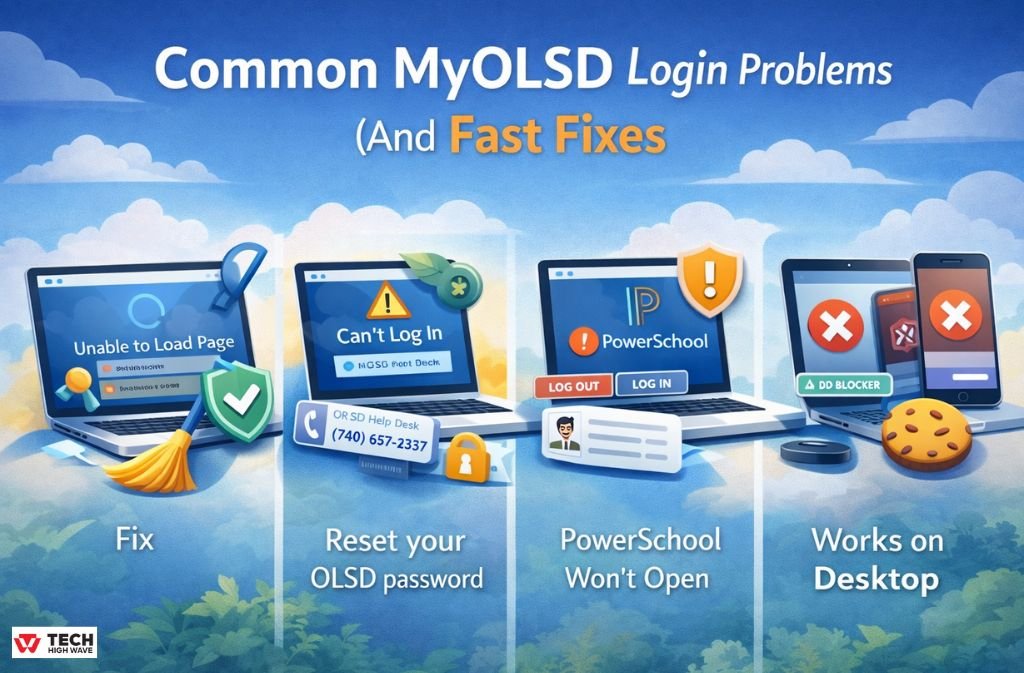
1. MyOLSD Login Page Won’t Load
Fix
- Clear browser cache
- Try Incognito/Private mode
- Switch to Chrome or Edge
2. MyOLSD Login Loop or Wrong Password
Fix
- Reset your OLSD password
- Contact the Technology Service Desk
3. PowerSchool Won’t Open from ClassLink
Fix
- Log out of ClassLink
- Log back in
- Open PowerSchool directly from the OLSD PowerSchool page
4. Works on Desktop but Not Mobile
Fix
- Disable ad blockers
- Enable cookies
- Avoid in-app browsers
Schoology OLSD Login Workaround (If ClassLink Is Down)
If ClassLink is unavailable but district authentication is active:
- Go to Schoology.com
- Select Log in through your school
- Search for Olentangy Local School District
- Complete the SSO login
This bypasses ClassLink—not OLSD security.
MyOLSD Login on Mobile Devices
iPhone (Safari)
- Works best with cookies enabled
- Avoid Private Browsing on first login
Android (Chrome)
- Disable ad blockers if apps won’t open
- Allow pop-ups for redirects
School-Issued iPads
- Use Safari
- Restart the device if SSO loops persist
OLSD Technology Department & IT Support (Verified)
MyOLSD access is managed by the Olentangy Local School District Technology Department.
Official Help Desk
- 📞 Phone: (740) 657-4357
- 📧 Email: service_desk@olsd.us
Best time to call: 9:30 AM – 2:30 PM
(First-day mornings are the busiest.)
Also Check: Dropbox 8737.idj.029.22 Error: Fix It Fast (2026 Guide)
Real-World Insight: The “First Day Peak”
Every year, between 7:45 and 8:15 AM on the first day of school, MyOLSD traffic spikes sharply. Even correct credentials may lag or timeout.
Waiting 10–15 minutes often resolves the issue without any action.
2026 Security & MFA Notes
OLSD is increasing security standards district-wide.
Expect multi-factor authentication (MFA) prompts
Verification may include:
- Microsoft Authenticator
- SMS codes
- Email confirmation
OLSD will never ask for your password via email or social media.
First-Day-of-School MyOLSD Checklist
- ☐ Test login the night before
- ☐ Bookmark the ClassLink LaunchPad
- ☐ Clear browser cache once
- ☐ Have MFA device ready
- ☐ Save OLSD IT contact info
Best Practices for Smooth MyOLSD Access (2026)
- Use Chrome or Edge
- Keep cookies enabled
- Avoid VPNs that block SSO
- Don’t bookmark expired SAML links
- Parents should use the PowerSchool Parent Portal
FAQs
Q1: How do I check grades on MyOLSD in 2026?
A: To check grades, log into MyOLSD via ClassLink using your district email and password. Once inside, open the PowerSchool app to view grades, attendance, and progress reports. This works for students and parents with authorized access.
Q2: Who uses MyOLSD — students, parents, or teachers?
A: Everyone in the Olentangy Local School District uses MyOLSD. Students, teachers, staff, and parents can access district tools like ClassLink, PowerSchool, and Schoology through their accounts. Parent access may be limited to PowerSchool and selected apps, while students and staff can reach the full suite.
Q3: Can parents use PowerSchool without logging into MyOLSD?
A: Yes. Parents can log in directly to the PowerSchool Parent Portal without going through MyOLSD/ClassLink. However, using MyOLSD can simplify access to multiple apps in one place and reduce login confusion.
Q4: Is MyOLSD the same as ClassLink?
A: No. MyOLSD is the overall district login system, while ClassLink LaunchPad is the interface or dashboard you use after logging in. ClassLink allows single sign-on (SSO) to multiple apps like PowerSchool, Schoology, and Google Workspace.
Q5: Is it safe to use third-party MyOLSD login pages?
A: No. Always use official OLSD or ClassLink links. Third-party login pages can be outdated, unsafe, or phishing attempts. Bookmark https://launchpad.classlink.com/olentangy to ensure secure access every time.
Conclusion
MyOLSD is the central gateway for everything in the Olentangy Local School District. When you use the official ClassLink login and avoid outdated links, most access issues disappear. In 2026, problems are usually caused by browser settings, expired bookmarks, or security prompts—not the portal itself.
Keep your login clean, your bookmarks updated, and you’ll avoid the most common MyOLSD headaches.
Related: NippyBox in 2026: What Happened + Safe Alternatives