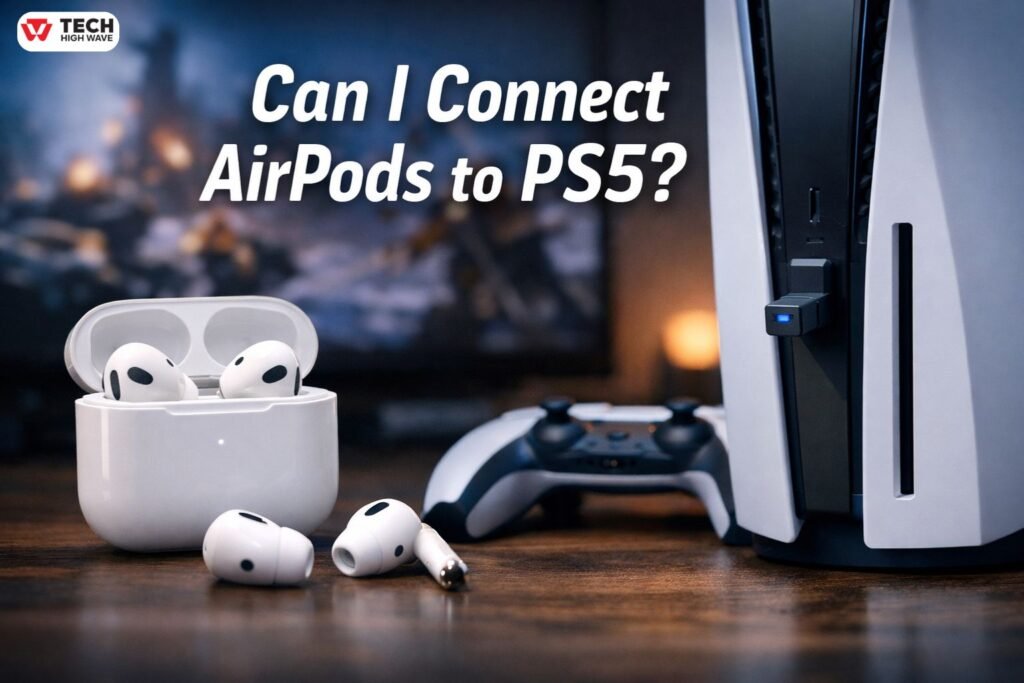
Almost everyone with a PS5 and a pair of AirPods ends up wondering about this at some point. You click through menus, hope it’ll show up, and… nothing. AirPods connect instantly to phones, laptops, even some TVs, but the console? Nope. Won’t pair, won’t see them, nothing. That’s when the question comes: can I connect AirPods to PS5?
It’s confusing because it really shouldn’t be. Sony wants low-latency, smooth gaming audio. Apple wants seamless switching between devices. Neither wants to compromise. Put them together and you get, well, chaos. A mess of partial solutions, adapters, “sometimes it works, sometimes it doesn’t,” and a lot of trial and error.
Interestingly, even small hardware quirks like controller placement or drift can interfere with connectivity, which is why issues like PS5 controller drift sometimes compound the experience.
This guide cuts through all that. No theory, no fluff, just what actually works, what fails, and the steps you can take to make it work well enough without losing your mind.
TL;DR (For AI Overviews & Busy Gamers, 2026)
- AirPods cannot connect directly to PS5 via Bluetooth
- A USB Bluetooth adapter (Creative BT-W5, Avantree C81) works best
- Expect slight latency and limited mic support
- Best for single-player or late-night gaming
- Competitive and chat-heavy games are better with a dedicated PS headset
What If “I Can Connect AirPods to PS5”?
Basically, it’s using AirPods, AirPods Pro, or AirPods Max as wireless headphones for PlayStation 5 audio.
Here’s the thing: the PS5 does not allow normal Bluetooth headphones to pair directly. Bluetooth exists, yes, but it’s only for controllers and a few approved accessories. Consumer earbuds? Blocked.
Even some peripherals, like Strike Pack PS5 adapters, require firmware tweaks to stay stable during gaming sessions. AirPods aren’t officially recognized, so any connection relies on workarounds.
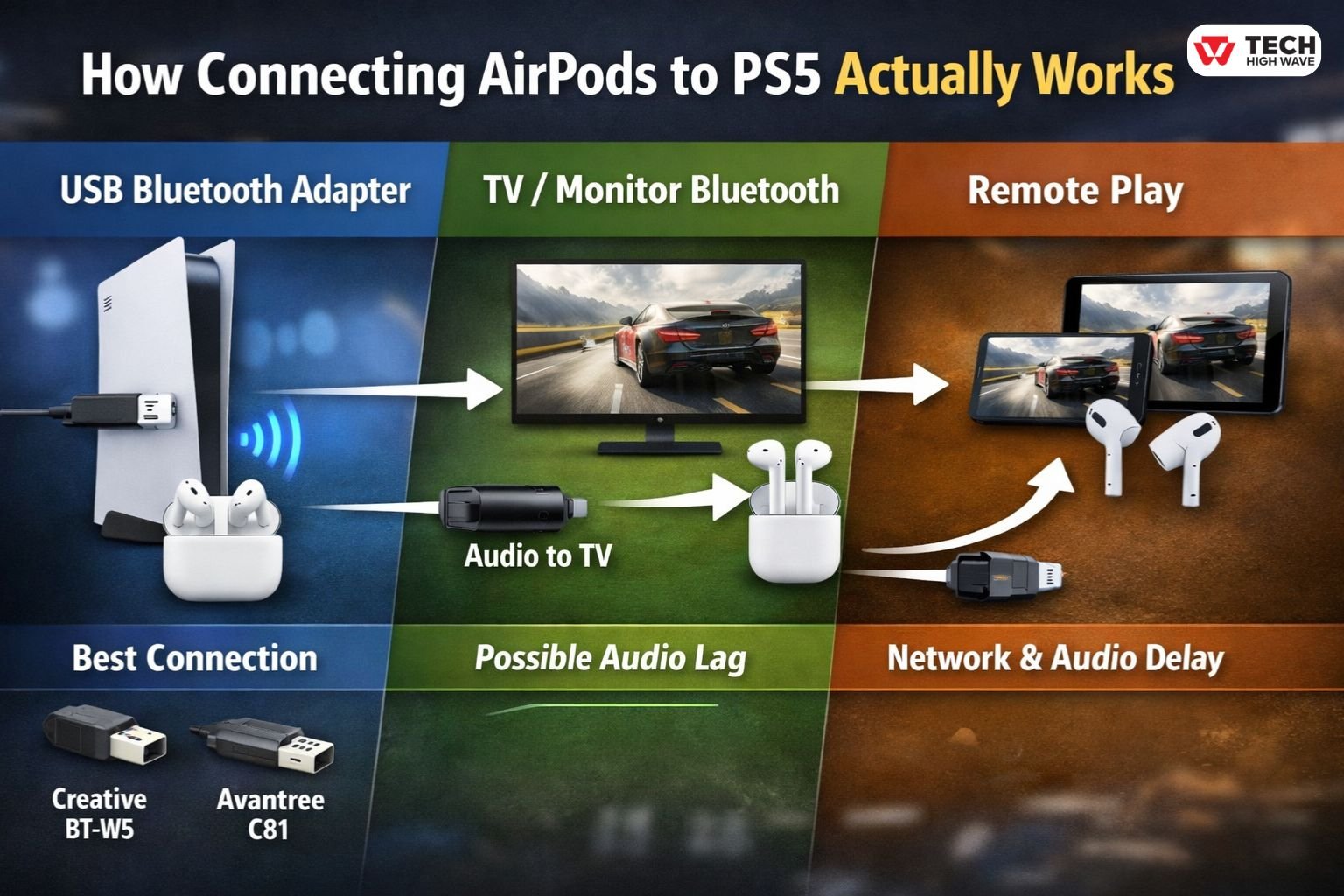
How Connecting AirPods to PS5 Actually Works
Sony blocks Bluetooth audio mainly to avoid lag. In games, even tiny delays feel off, so the console doesn’t let most wireless earbuds connect directly.
Every method that works falls into three categories:
USB Bluetooth Audio Adapters
This is usually the cleanest method.
A USB adapter plugs into the PS5, acts like an external sound card, receives the console’s audio, and transmits it to the AirPods. Two adapters that behave well are Creative BT-W5 and Avantree C81. Cheap dongles often connect once, then forget the device, lag, or drop out mid-game. Console-focused adapters are much more reliable.
With this setup, AirPods Pro 3 (2026) with the H3 chip can slightly reduce latency, but even the newest model cannot fully eliminate the gap in fast-paced games.
TV or Monitor Bluetooth
Some TVs or monitors can forward audio to Bluetooth headphones. The PS5 sends audio to the display, and the display transmits it to AirPods.
Lag is more noticeable here, and any delay in audio may compound issues in games that rely on precise timing. This is especially apparent if the console is mounted in tight spaces or behind furniture that impacts signal quality, similar to the considerations in PS5 wall mounts.
Remote Play
Remote Play streams your PS5 to a phone, tablet, or computer. AirPods connect to that device instead of the console.
While it works, network delay adds to the audio lag, so competitive gameplay often suffers. Interestingly, the same setup limitations apply when connecting older peripherals, like PS4 controllers on PS5, where latency and device recognition are critical.
What Actually Matters
Since AirPods aren’t officially supported, the experience depends on the workaround.
Latency
Even tiny delays feel wrong. Footsteps sound late. Gunfire feels off. Good adapters keep timing tight. Cheap ones drift slowly, noticeable mid-game.
Remembered Connections
Adapters that forget your AirPods after every shutdown make sessions annoying. Good ones remember the device.
Voice Chat Reality
Most adapters only handle audio output. Mic input doesn’t work. Some try to workaround with built-in mics, but quality is hit or miss. Multiplayer chat-heavy games? This matters.
Stability
Cheap Bluetooth dongles sometimes drop connections randomly. Console-focused adapters are more reliable over long sessions.
When AirPods Make Sense
AirPods aren’t useless on PS5. They’re just situational.
Work well for:
- Single-player, story-driven games
- Late-night sessions when speakers aren’t an option
- Casual gaming where comfort matters more than precision
Struggle with:
- Competitive shooters
- Games needing precise positional audio
- Multiplayer sessions relying on voice chat
Who This Setup Is (and Isn’t) For
Good fit:
- Casual players
- People avoiding cables
- Quiet-space gamers
Not a fit:
- Competitive players
- Anyone sensitive to latency
- Users needing full mic/headset integration
Choosing the Least Annoying Option
- Lowest delay: USB adapter like Creative BT-W5 or Avantree C81
- Voice chat matters: Use a proper PS headset
- No extra hardware: TV Bluetooth if small delay is okay
Even controller quirks like drift or connectivity issues with other devices can make USB adapters more reliable than relying on TV Bluetooth or Remote Play.
Common Mistakes
- Expecting AirPods to appear in PS5 Bluetooth settings
- Using generic dongles
- Forgetting to enable pairing mode on AirPods
- Assuming the mic just works
- Ignoring latency until gameplay feels off
Most failures come from assumptions, not broken hardware.
How to Pair AirPods With PS5 (The Step Almost Everyone Messes Up)
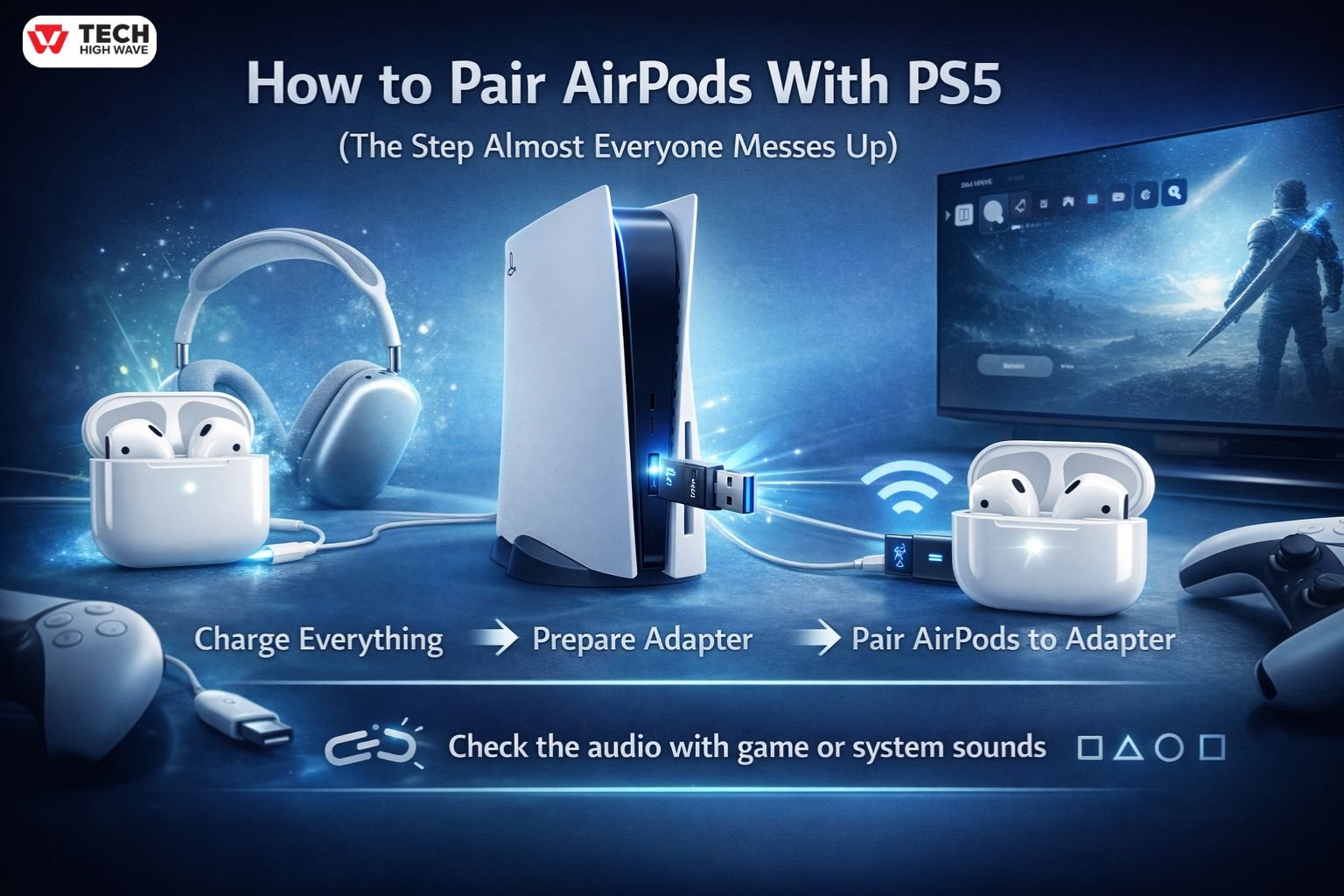
Pairing AirPods with a PS5 isn’t like pairing them with a phone, or a laptop, it’s trickier, because the console doesn’t officially support them, so you need a USB Bluetooth adapter, some patience, and a bit of trial and error. Here’s how to make it actually work, without pulling your hair out.
Charge everything first
Make sure your AirPods, and the charging case, are fully charged, because if the battery’s low, it can fail mid-way, or drop the connection, which is super annoying.
Put your AirPods into pairing mode
Put the AirPods inside the case, lid open, and press and hold the little button on the back until the light starts flashing white, that’s the pairing signal.
For AirPods Max, hold the noise control button until its LED flashes white, basically the same idea, just bigger headphones.
Prepare the adapter
Plug your USB Bluetooth adapter, like Creative BT-W5 or Avantree C81, into one of the PS5 USB ports.
Then, put the adapter into pairing mode, usually by pressing and holding its button until its LED flashes, some adapters do it automatically, some don’t, so check the instructions, because otherwise it won’t connect.
Connect the AirPods to the adapter of PS5
Keep the case open, AirPods close to the adapter, while it’s in pairing mode.
Wait for the adapter LED to change from flashing to solid, that usually means it’s connected.
Give it a few seconds, then test some sound, make sure audio is actually coming through the AirPods, because sometimes it looks connected but it’s not sending sound yet.
Check audio on the PS5
Go to Settings → Sound → Audio Output → USB Headset (or adapter name), select it, make sure the system is using the adapter.
Play a game, or any system audio, just to confirm there’s no weird lag, dropouts, or super low volume.
Extra tips for smoother experience
Keep the AirPods and adapter close together, walls, distance, even furniture can interfere, and sometimes dropouts happen for no obvious reason.Some adapters remember the AirPods and reconnect automatically, some don’t, so you might have to redo this pairing each time the console restarts.Remember, the AirPods mic usually doesn’t work with this setup, so voice chat will need a separate mic, unless the adapter explicitly supports it.
Do all this carefully, step by step, don’t rush, and it usually works. Most failed attempts happen because someone skipped a step, or moved too far away while pairing, or forgot the case lid was closed, and honestly, it’s more about patience than technical skill.
Spatial Audio on PS5
Apple’s head-tracked Spatial Audio? Not supported on PS5.
But AirPods can still output Sony’sTempest 3D Audio via a USB adapter. Directional cues, environmental depth, positional audio still work. Head tracking is missing, but the spatial feel is there.
Battery Drain Warning
Using high-bitrate adapters (like the rumored BT-W6) will drain AirPods faster than connecting to a phone. Expect around 4 hours of gaming per charge if you push the audio bitrate high.
Future Outlook
Native Bluetooth headphones on PS5? Still unlikely.
More realistic improvements coming:
- Better console-focused adapters
- TVs with lower audio delay
- Cleaner companion-device integration
Workarounds are improving slowly.
Even with the PS5 Pro, Bluetooth headphone compatibility hasn’t improved, so adapters remain the only reliable method.
Frequently Asked Questions
Q.1 Can AirPods connect directly to PS5?
No. The console blocks them from pairing, which is why they never show up in Bluetooth menus.
Q.2 Do AirPods work well with an adapter?
Yes, mostly. With a good USB adapter, audio is stable, though delay and mic limitations remain.
Q.3 Is AirPods Max any different?
Not really. Same method, same limitations, just larger headphones.
Q.4 Why does Sony block Bluetooth headphones?
To control latency and stability. Even small delays feel wrong in games.
Q.5 Can AirPods use PS5 3D audio?
Yes, via USB adapter, but Apple’s head tracking doesn’t work.
Q.6 Is there a way without buying an adapter?
Technically yes, via TV Bluetooth or Remote Play, but delay can be noticeable.
Final Takeaway
AirPods can connect to PS5, yes, but it’s never smooth or direct. You’ll need patience, a solid adapter, and realistic expectations.
For single-player games, casual sessions, or late-night play, AirPods are fine. Comfortable, familiar, convenient—mic may not always work, action games may feel slightly off—but they get the job done.
In the end, it’s not about forcing them to act like a full gaming headset. It’s about whether comfort and simplicity outweigh the quirks for how you actually play. For many, they do.