Gaming mice don’t usually fail because of hardware — they fail because of missing, confusing, or incorrect software.
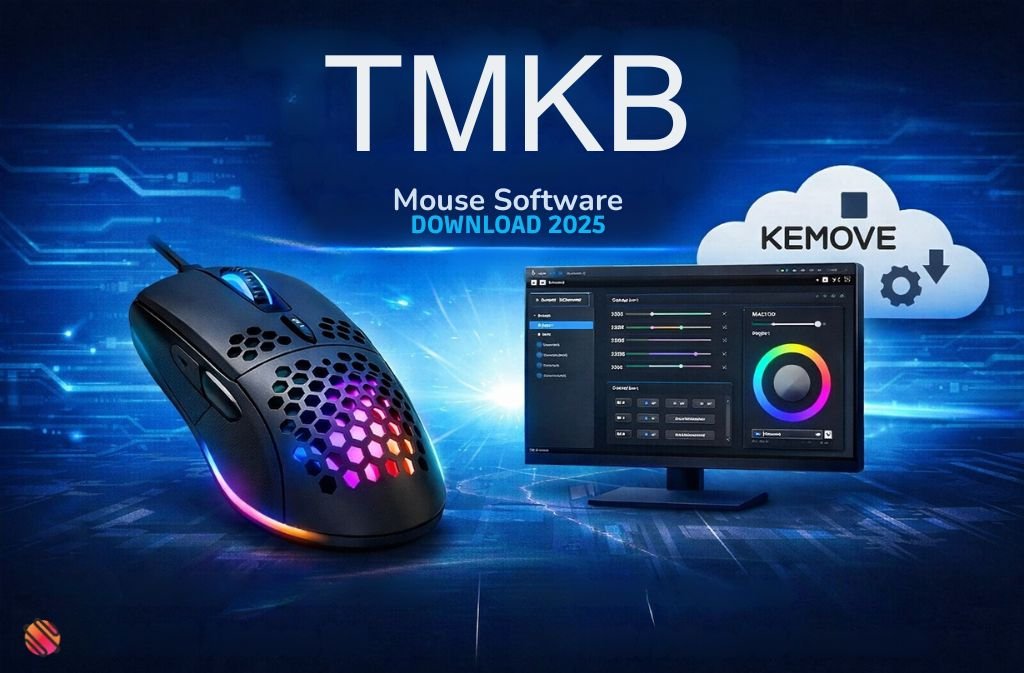
That’s why searches for TMKB mouse software download keep rising in 2025. Popular models like the TMKB M1SE, Falcon M1, and T68SE work well out of the box, but without the correct driver, users quickly run into problems: DPI settings that won’t save, RGB lighting that resets, macros that don’t work in games, or software that refuses to detect the mouse at all.
The confusion isn’t accidental. TMKB operates under Kemove’s firmware and driver ecosystem, which means official TMKB software is often hosted on Kemove support pages, labeled inconsistently, and rarely explained clearly.
This guide fixes that.
Below, you’ll find the official TMKB mouse software download options, model-specific setup instructions, and proven troubleshooting steps — all verified for Windows 10 and Windows 11 as of late 2025. No sketchy mirrors. No guesswork. Just the correct solution.
| To download TMKB mouse software, visit the official TMKB or Kemove support page, select your exact mouse model (such as M1SE), install the Windows driver as administrator, restart your PC, and connect the mouse directly to a USB port. |
What Is TMKB Mouse Software?
TMKB mouse software is the official configuration utility used to customize TMKB gaming mice. It allows you to:
-
Adjust DPI levels and polling rate
-
Customize RGB lighting
-
Reassign mouse buttons
-
Create and save macros
-
Store profiles directly on the mouse
Without this software, TMKB mice still function, but only in basic plug-and-play mode — no advanced customization is saved.
Why TMKB Software Is Hosted on Kemove (Important)
This is the single biggest source of confusion for TMKB users.
TMKB is a sub-brand within Kemove’s hardware ecosystem. As a result:
-
TMKB drivers are often hosted on kemove.com
-
The software interface may display Kemove branding
-
Firmware packages are shared across similar models
This is normal, official, and safe. It does not mean your mouse is fake or unsupported.
Official TMKB Mouse Software Download Sources (2025)
Only use verified, official sources.
| Source | Best For | Notes |
|---|---|---|
| TMKB Official Support | All TMKB models | Lower authority but direct |
| Kemove Support Center | M1SE, Falcon M1 | Most frequently updated |
| Amazon Product Pages | Model verification | Confirms compatibility |
| Official YouTube Guides | Setup visuals | Not for downloads |
⚠️ Avoid: Google Drive links, “instant download” Pinterest posts, cracked macro tools, or repacked installers.
TMKB Mouse Models & Software Compatibility
Windows Compatibility Table
| Mouse Model | Windows 10 | Windows 11 | macOS | Notes |
|---|---|---|---|---|
| TMKB M1SE | ✅ | ✅ | ❌ | Install as admin |
| Falcon M1 | ✅ | ✅ | ❌ | Same driver as M1SE |
| T68SE | ✅ | ✅ | ❌ | Limited RGB control |
| M1 (Wireless) | ✅ | ✅ | ❌ | Different firmware |
Important: Installing the wrong driver (wired vs wireless) causes permanent “device disconnected” errors until corrected.
TMKB M1SE Mouse Software Download (Most Searched Model)
The TMKB M1SE uses the Kemove Falcon M1 driver package.
Many users mistakenly install:
-
M1 wireless software ❌
-
Generic TMKB utilities ❌
This causes detection failure.
Correct approach:
Use the Falcon M1 / M1SE wired driver from Kemove’s official support page.
Also Read: What Is VBOX Software? VirtualBox vs Racelogic Explained (2025)
How to Install TMKB Mouse Software (Step-by-Step)
Follow this order exactly to avoid detection issues.
Step 1: Confirm Your Mouse Model
Check the label on the bottom of the mouse or the original box.
M1 ≠ M1SE ≠ Falcon M1.
Step 2: Download the Correct Driver
Use TMKB or Kemove official support pages only.
Step 3: Install as Administrator
-
Right-click the installer
-
Select Run as administrator
-
Complete installation
Step 4: Restart Windows
This clears driver conflicts.
Step 5: Connect the mouse directly
Plug the mouse into a motherboard USB port (avoid USB hubs).
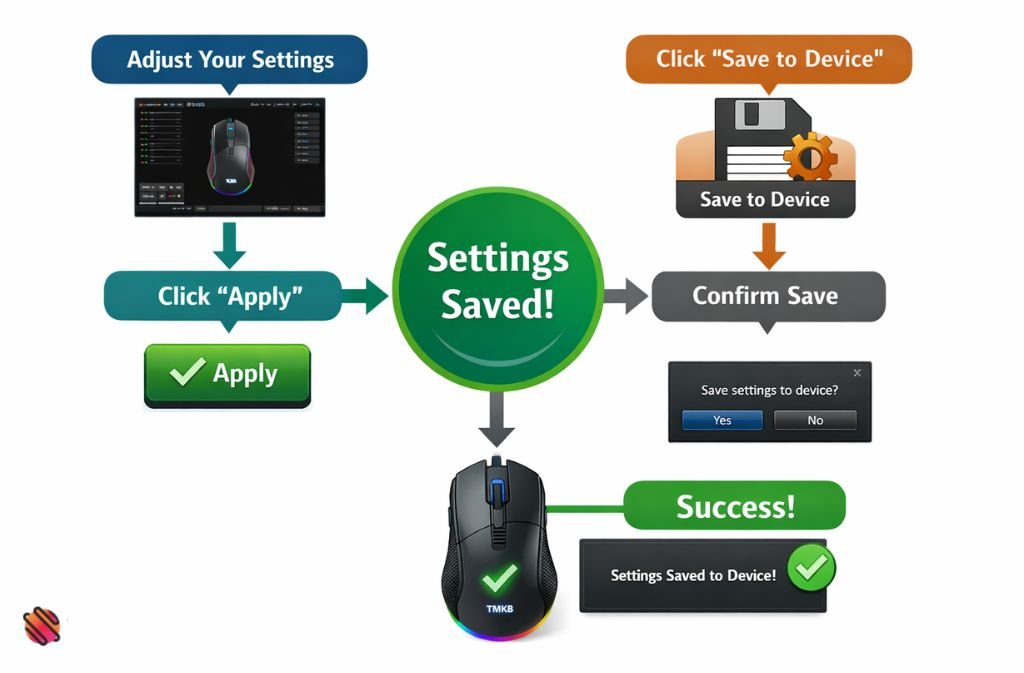
Step 6: Save Settings Properly
Always click:
-
Apply
-
Save to Device (not just profile)
Common TMKB Mouse Software Problems & Fixes
Software Doesn’t Detect the Mouse
Cause: USB hub, wrong driver, firmware mismatch
Fix:
-
Use a direct USB port
-
Reinstall the correct model driver
DPI Resets After Restart
Cause: Settings saved to software, not device
Fix:
-
Click “Save to Device”
RGB Lighting Won’t Save
Cause: Firmware mismatch
Fix:
-
Reinstall driver
-
Restart PC
Macros Don’t Work In Games
Cause: Admin permission or anti-cheat blocks
Fix:
-
Run software as administrator
-
Some competitive games disable macros
Software Crashes or Freezes
Cause: Conflict with other mouse software
Fix:
-
Close Logitech G Hub, Razer Synapse, SteelSeries GG
Is TMKB Mouse Software Safe?
Yes — when downloaded from official sources.
Safe practices:
-
Use TMKB or Kemove websites only
-
Scan installers with Windows Defender
-
Avoid “modded” macro tools
Unsafe sources are the #1 reason users experience malware disguised as gaming utilities.
macOS & Linux Support (Reality Check)
As of 2025:
-
TMKB mouse software is Windows-only
-
macOS and Linux users get basic mouse functionality
-
DPI, RGB, and macros require Windows
Some newer Kemove models are experimenting with web-based tools, but TMKB mice still rely on desktop software.
Also Read: Best Laser Engraver Software in 2025 (Free vs Paid Compared)
Future Outlook for TMKB Software (2025–2026)
Based on Kemove’s current development direction:
-
Web-based configuration tools are expanding
-
Windows 11 optimization is improving
-
A unified launcher is possible, but not confirmed
-
macOS support remains unlikely short-term
These are expectations, not promises.
FAQs
Q. How do I download TMKB mouse software safely?
To download TMKB mouse software safely, use only the official TMKB or Kemove support pages. Select your exact mouse model (such as M1SE), run the installer as administrator, restart Windows after installation, and connect the mouse directly to a motherboard USB port. Avoid third-party download sites or modified driver files.
Q. Why does TMKB mouse software redirect to Kemove?
TMKB operates under Kemove’s hardware and firmware ecosystem. Because of this, official TMKB mouse drivers and software updates are often hosted on kemove.com instead of a separate TMKB-only website. This redirect is normal and confirms that the software is official and supported.
Q. Which software should I use for the TMKB M1SE mouse?
The TMKB M1SE mouse uses the Kemove Falcon M1 / M1SE wired driver. Installing software meant for the wireless M1 or generic TMKB utilities can cause detection errors. Always confirm that the driver explicitly supports the M1SE wired model before installing.
Q. Does TMKB mouse software work on Windows 11?
Yes, TMKB mouse software officially supports both Windows 10 and Windows 11 as of late 2025. For best results, install the software using administrator privileges and restart your system after installation to prevent driver permission or detection issues.
Q. Why does TMKB mouse software say “device disconnected”?
The “device disconnected” error usually occurs due to an incorrect driver, firmware mismatch, or USB hub interference. To fix it, reinstall the correct driver for your exact mouse model and connect the mouse directly to a USB port on the motherboard instead of a hub.
Q. Is TMKB mouse software free to download?
Yes, all official TMKB mouse software and drivers are completely free. TMKB does not charge for customization tools, firmware updates, or configuration utilities. Any website asking for payment or offering “premium” TMKB drivers should be avoided.
Q. Can I customize a TMKB mouse on macOS?
No, TMKB mouse customization is not supported on macOS. While the mouse will function in basic plug-and-play mode, features like DPI adjustment, RGB lighting, and macros require the official Windows software. A Windows system is needed for full customization.
Conclusion
Finding the correct TMKB mouse software download shouldn’t feel like trial and error — but branding confusion has made it that way.
Here’s what actually matters:
-
TMKB software is officially hosted under Kemove
-
Model accuracy is critical (especially M1 vs M1SE)
-
Install as administrator and save settings to device
-
Avoid unofficial driver mirrors
Once set up correctly, TMKB mice perform exactly as intended — stable, responsive, and fully customizable.
Related: Akitsu Mouse Software 2025: Official Setup, Settings & Optimization Guide
| Disclaimer: This article is for informational purposes only. TMKB and Kemove are registered trademarks of their respective owners. We are not affiliated with or endorsed by TMKB or Kemove. Always download software from official sources, follow installation instructions carefully, and use at your own risk. We are not responsible for any damage, data loss, or malfunctions resulting from software installation. |