Ultra-light gaming mice have transformed competitive gameplay, offering precision and comfort that standard mice can’t match. Among the top performers is the Arbiter Studio x Vancer AKITSU, a carbon-fiber composite mouse built for speed, accuracy, and tournament readiness. While the hardware is exceptional, configuring it correctly often leaves users confused due to its unique software approach.
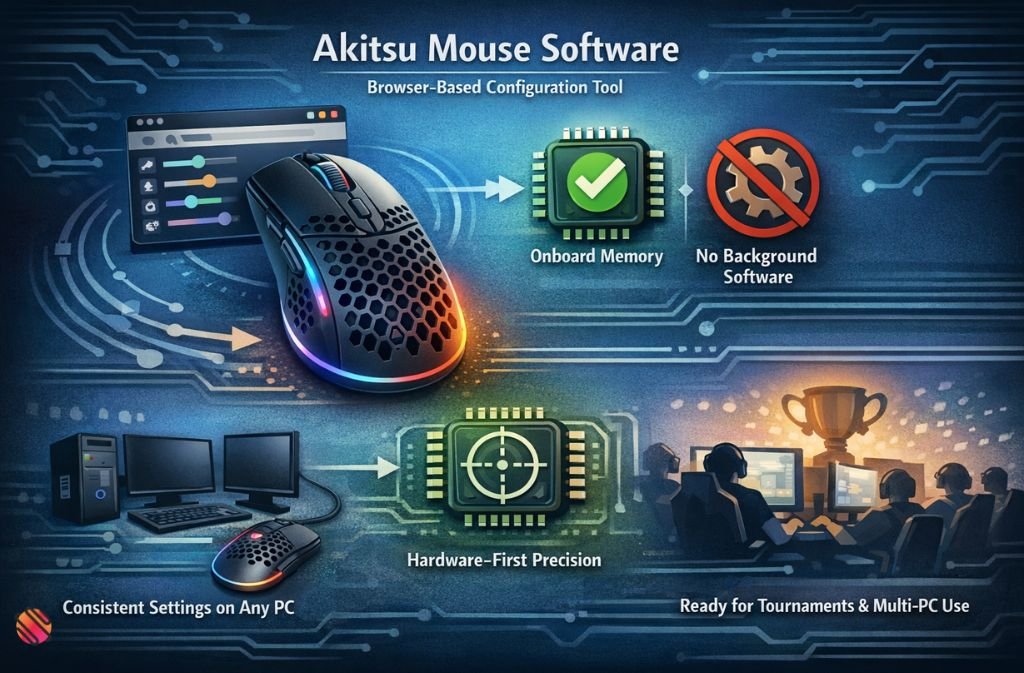
Unlike traditional brands, AKITSU does not rely on a bulky desktop app. Instead, it leverages a web-based configuration system with onboard memory, allowing users to save DPI, polling rate, debounce time, and button mappings directly to the mouse. The result: maximum performance, zero background software, and consistent settings across any PC.
This guide covers everything you need to know in 2025: downloading the official software, step-by-step setup, optimal settings for gaming, battery and firmware tips, and common mistakes to avoid. By following this resource, you’ll unlock AKITSU’s full potential.
What Is Akitsu Mouse Software?
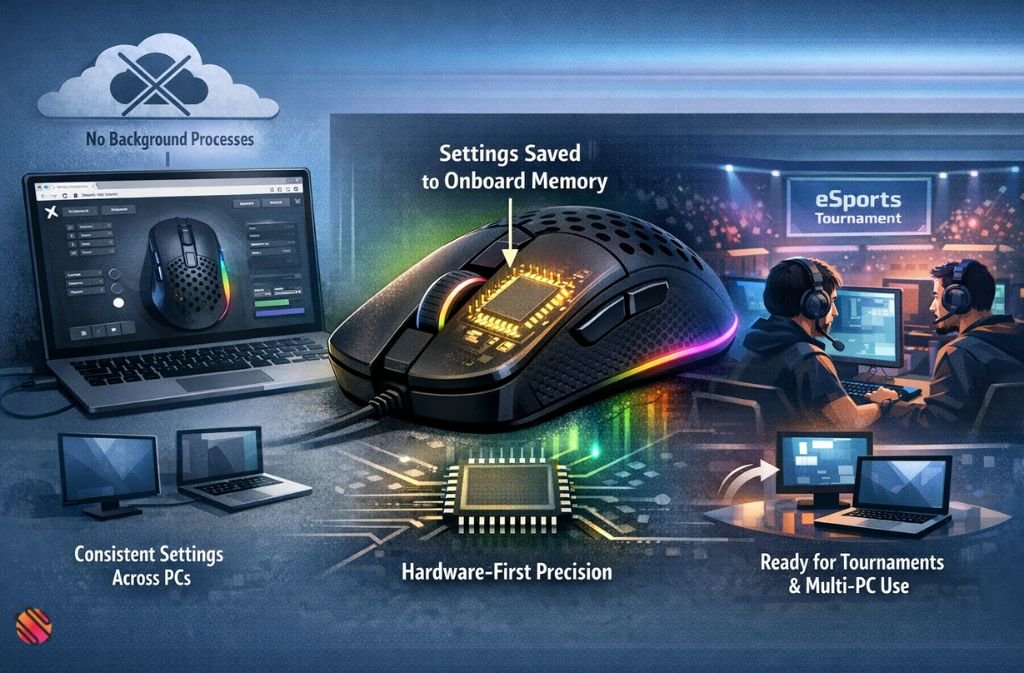
Akitsu mouse software is a browser-based configuration tool developed by Arbiter Studio, designed for the AKITSU lineup. Unlike traditional desktop suites, all changes are saved directly to the mouse’s onboard memory, allowing:
-
Consistent settings across multiple PCs
-
Zero background processes or startup services
-
Hardware-first precision without software bloat
Once configured, your settings persist on the device, making AKITSU ideal for tournaments and multi-computer setups.
Official Akitsu Software Sources
To ensure security and compatibility, always use official sources. Avoid third-party downloads.
-
Arbiter Studio Web Configuration Tool: https://arbiterstudio.com/pages/web-app
-
Arbiter Studio Downloads & Support: https://arbiterstudio.com/pages/download
-
Vancer Official Drivers & Firmware: https://www.vancer.gg/serano_portfolio/drivers-downloads/
-
Vancer AKITSU Product Page: https://www.vancer.gg/serano_portfolio/akitsu/
⚠️ Only official links guarantee up-to-date firmware and safe configuration.
Step-by-Step Akitsu Mouse Software Setup
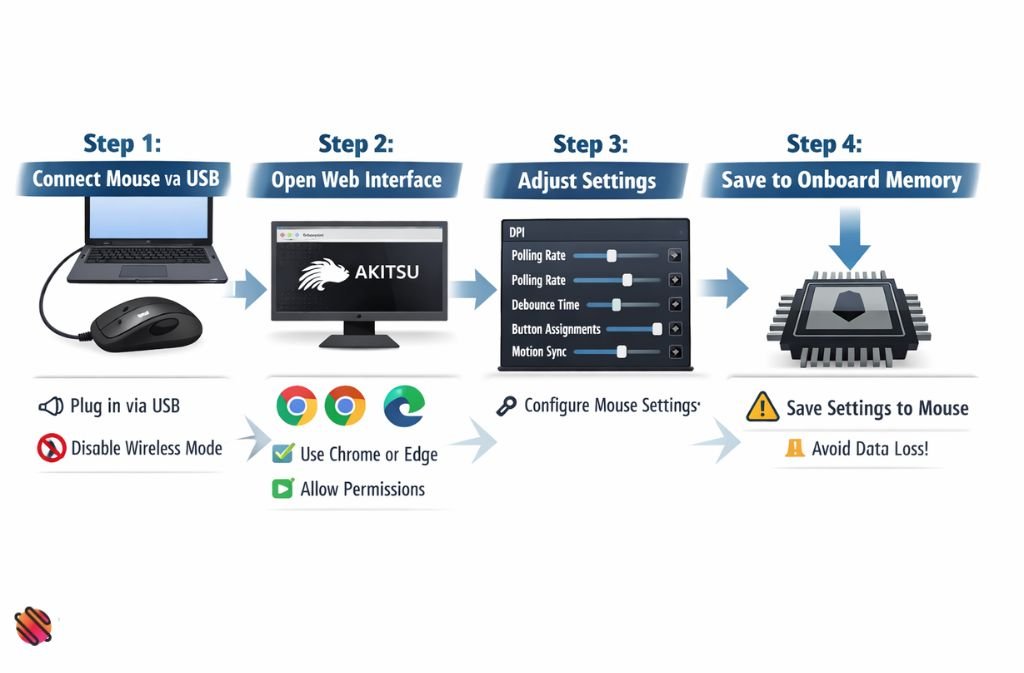
1: Connect the Mouse via USB
-
Use a wired connection for first-time setup
-
Disable wireless mode temporarily to ensure full detection
2: Open the Web-Based Interface
-
Recommended browser: Chrome or Edge
-
Grant access permissions for full configuration
3: Adjust Core Settings
-
DPI levels
-
Polling rate
-
Debounce time
-
Button assignments
-
Motion sync
4: Save to Onboard Memory
⚠️ Always save to memory — unsaved settings reset on disconnect
5: Firmware Updates (Optional)
-
Only update if official notes mention fixes
-
Never interrupt power during the update
Akitsu Mouse Software Settings Explained
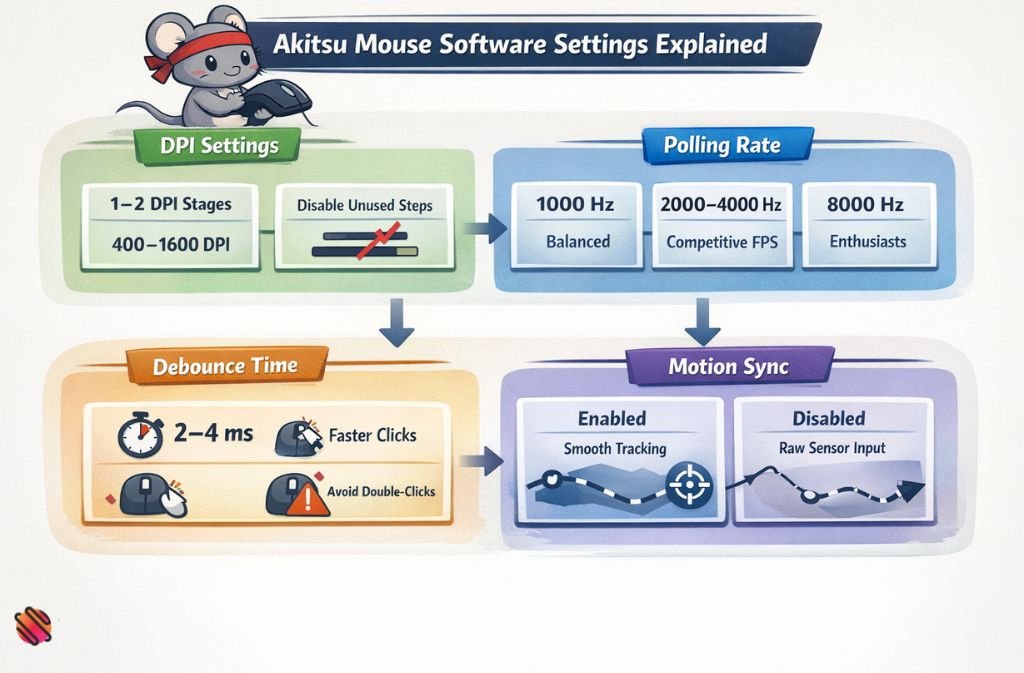
DPI Settings
Precision is more important than quantity. Too many DPI stages can cause accidental sensitivity changes.
Recommended setup:
-
1–2 DPI stages
-
Competitive range: 400–1600 DPI
-
Disable unused steps for accuracy
Polling Rate
| Polling Rate | Best For | Notes |
|---|---|---|
| 1000 Hz | Most users | Balanced performance and battery life |
| 2000–4000 Hz | Competitive FPS | Higher CPU usage |
| 8000 Hz | Enthusiasts | Battery drain, minimal benefit |
Tip: For most setups, 1000 Hz is ideal in 2025.
Debounce Time
Controls click registration:
-
Lower = faster clicks
-
Too low = double-click risk
Safe range: 2–4 ms
Motion Sync
Synchronizes sensor readings with USB polling:
-
Improves tracking consistency
-
Slight latency increase (negligible for most users)
Recommended: Enable for tactical shooters, disable only if raw sensor output is preferred.
Firmware Updates: When They Matter
-
Update only when official release notes mention fixes
-
Do not update unnecessarily; risk of performance issues exists
-
Avoid updating mid-tournament
Firmware updates are a tool, not routine maintenance.
Battery Optimization
Best practices for longevity:
-
Use 1000–2000 Hz polling rate
-
Disable unused DPI stages
-
Avoid excessive RGB or motion sync polling
-
Fully charge before firmware updates
Proper configuration significantly extends battery life.
AKITSU vs Other Ultra-Light Gaming Mice
| Feature | AKITSU | Finalmouse Ultralight | Logitech G Pro X SL |
|---|---|---|---|
| Weight | ~29g | ~33g | ~63g |
| Shell Material | Carbon fiber composite | Magnesium | Plastic |
| Software Type | Web-based | Desktop | Desktop |
| Onboard Memory | ✅ Full | Limited | Partial |
| Background App Needed | ❌ No | ✅ Yes | ✅ Yes |
| Polling Rate Support | Up to 8K | Up to 8K | 1K |
| Best For | Competitive FPS | Esports | General gaming |
Why AKITSU excels: Hardware-first design, lightweight, zero background overhead.
Common Mistakes to Avoid
-
Using max polling on low-end PCs
-
Enabling too many DPI stages
-
Updating firmware without necessity
-
Expecting a full desktop UI experience
-
Forgetting to save to the onboard memory
Avoid these to maximize performance and battery life.
Real-World Competitive Setup Example
Game: CS2 / Valorant
DPI: 800
Polling Rate: 1000 Hz
Debounce: 2 ms
Motion Sync: Enabled
Lift-off Distance: Low
This setup maximizes accuracy, stability, and battery efficiency.
Callout Boxes: Key Tips
⚠️ Save to Memory
Unsaved settings reset when unplugged. Always confirm before closing the tool.
🎯 Fewer DPI Stages = Better Aim
Disable unused DPI levels. One or two well-chosen DPI values reduce accidental sensitivity changes.
🔋 1000 Hz Polling Sweet Spot
Higher rates reduce battery life with minimal real-world benefit.
🧠 Firmware Only When Necessary
Only update when official notes mention specific fixes.
FAQs
Q1. What is Akitsu mouse software?
Akitsu mouse software is a web-based configuration tool for the AKITSU gaming mouse. It allows users to customize DPI settings, polling rate, debounce time, and button assignments, with all changes saved directly to the mouse’s onboard memory. Unlike traditional desktop apps, it runs entirely in the browser, providing hardware-first performance and zero background software.
Q2. How do I download Akitsu mouse software?
There is no downloadable executable for Akitsu mouse software. To configure your AKITSU mouse, use the official web tools from Arbiter Studio or Vancer:
-
Arbiter Studio Web App
-
Vancer AKITSU Configuration
Using only official sources ensures safe firmware updates and full compatibility.
Q3. Does the Arbiter AKITSU mouse require software to work?
No. The AKITSU mouse works plug-and-play for basic functionality. Software is only needed to customize settings, save profiles, and store them to onboard memory.
Q4. How do I update firmware on the Vancer AKITSU mouse?
Firmware updates should be applied only when official release notes indicate sensor improvements, connectivity fixes, or battery reporting updates. Use official Arbiter Studio or Vancer pages to download updates. Avoid unnecessary updates, as they may cause performance issues or interruptions during competitive play.
Q5. Is Akitsu mouse software safe?
Yes. When used via official web tools, the software runs entirely in-browser without installing background processes, minimizing system overhead. Avoid third-party downloads or repackaged firmware, as they can corrupt the mouse or cause detection errors.
Q6. Why doesn’t AKITSU have a desktop software app?
AKITSU prioritizes hardware-level configuration and onboard memory, which eliminates the need for bulky desktop applications. This ensures consistent performance across multiple PCs, reduces system overhead, and prevents driver conflicts.
Q7. Does Akitsu mouse software work on Mac?
The AKITSU mouse provides basic plug-and-play functionality on macOS, but full configuration support is optimized for Windows using Chromium-based browsers (Chrome, Edge). Advanced settings like DPI stages, motion sync, and button mapping may be limited on Mac.
Q8. What polling rate is best for AKITSU?
For most users, a 1000 Hz polling rate offers the best balance between responsiveness and battery efficiency. Higher rates (2000–8000 Hz) may provide negligible performance gains while increasing CPU load and reducing wireless battery life.
Conclusion
The Akitsu mouse software experience is intentionally different. Its hardware-first design with onboard memory, browser-based configuration, and minimal software overhead ensures consistent, precise performance across PCs. By following this guide, avoiding common mistakes, and optimizing DPI, polling, and debounce, you unlock the full potential of your AKITSU mouse—precision gaming without distraction.
Set it once, save it to memory, and focus entirely on performance.
Stay updated with the latest in technology at TechHighWave.